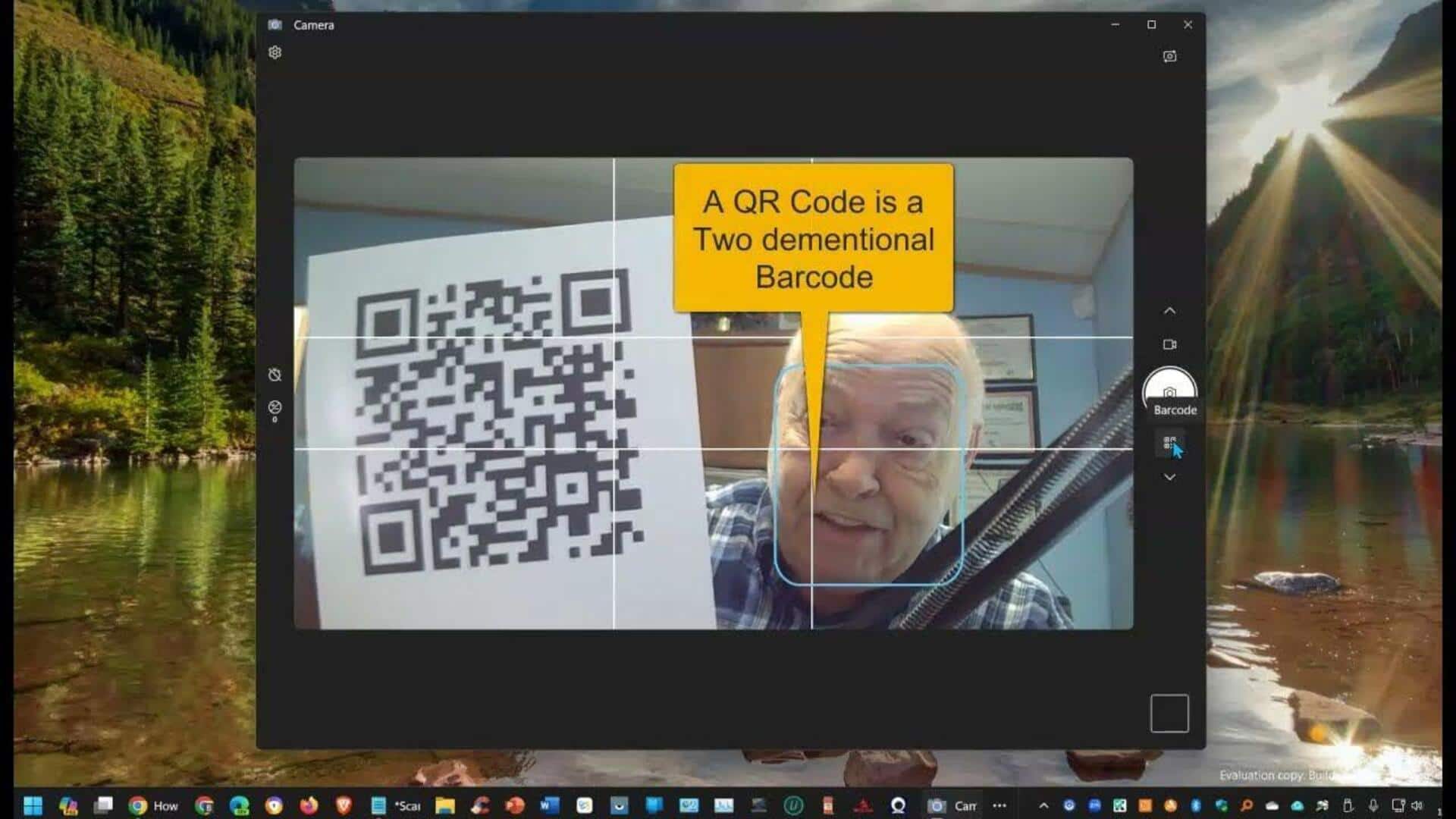
#TechBytes: How to scan QR codes with your laptop camera
What's the story
Scanning QR codes with your laptop camera can be a breeze, provided you have the right tools and know-how. Unlike smartphones, which come with built-in QR code scanning capabilities, laptops need some additional steps. But, with the right software and techniques, you can easily scan QR codes using your laptop's webcam. Here's a look at how you can do it easily.
Tip 1
Use built-in camera apps
Many laptops come with built-in camera apps that can be used to scan QR codes. Just open the camera app on your laptop and point it toward the QR code. If your laptop has this feature, it will automatically recognize the code and display the relevant information or link. This is a quick and easy way to scan without any additional software.
Tip 2
Install QR code reader software
If your laptop doesn't have a built-in option, you can always install third-party QR code reader software. There are many free and paid options available online that are compatible with different operating systems. Once installed, these programs would allow you to use your webcam to scan QR codes by simply clicking on a button or selecting an option in the software interface.
Tip 3
Use web-based QR code scanners
Web-based QR code scanners are another handy option for scanning codes with a laptop camera. Just visit a website that offers this service, grant access to your webcam, and point it toward the QR code. The website will process the image and display the information embedded in the code without requiring any downloads or installations.
Tip 4
Adjust camera settings for better scanning
To improve accuracy while scanning QR codes with a laptop camera, ensure proper lighting and focus. Adjusting brightness settings on both your laptop and surrounding environment can help make the code more readable. If possible, try moving closer or further away from the code until it comes into focus on-screen before attempting to scan again.