#TechBytes: How to activate guest mode on your smart TV
What's the story
Smart TVs have become a staple in most homes, providing access to a range of streaming services and apps. However, sharing your TV with guests can be a bit tricky when it comes to privacy and personal preferences. Guest mode is a handy feature that lets you share your TV without compromising on privacy or cluttering up your account with guest usage. Here's how to enable guest mode on different smart TV brands.
Samsung setup
Samsung Smart TV Guest Mode
Samsung Smart TVs come with a guest mode that can be enabled through the settings menu.
Go to Settings > General > System Manager > Mode Settings and select Guest Mode.
This will restrict access to personal accounts and apps, while allowing guests to use pre-installed apps without any hassle.
LG setup
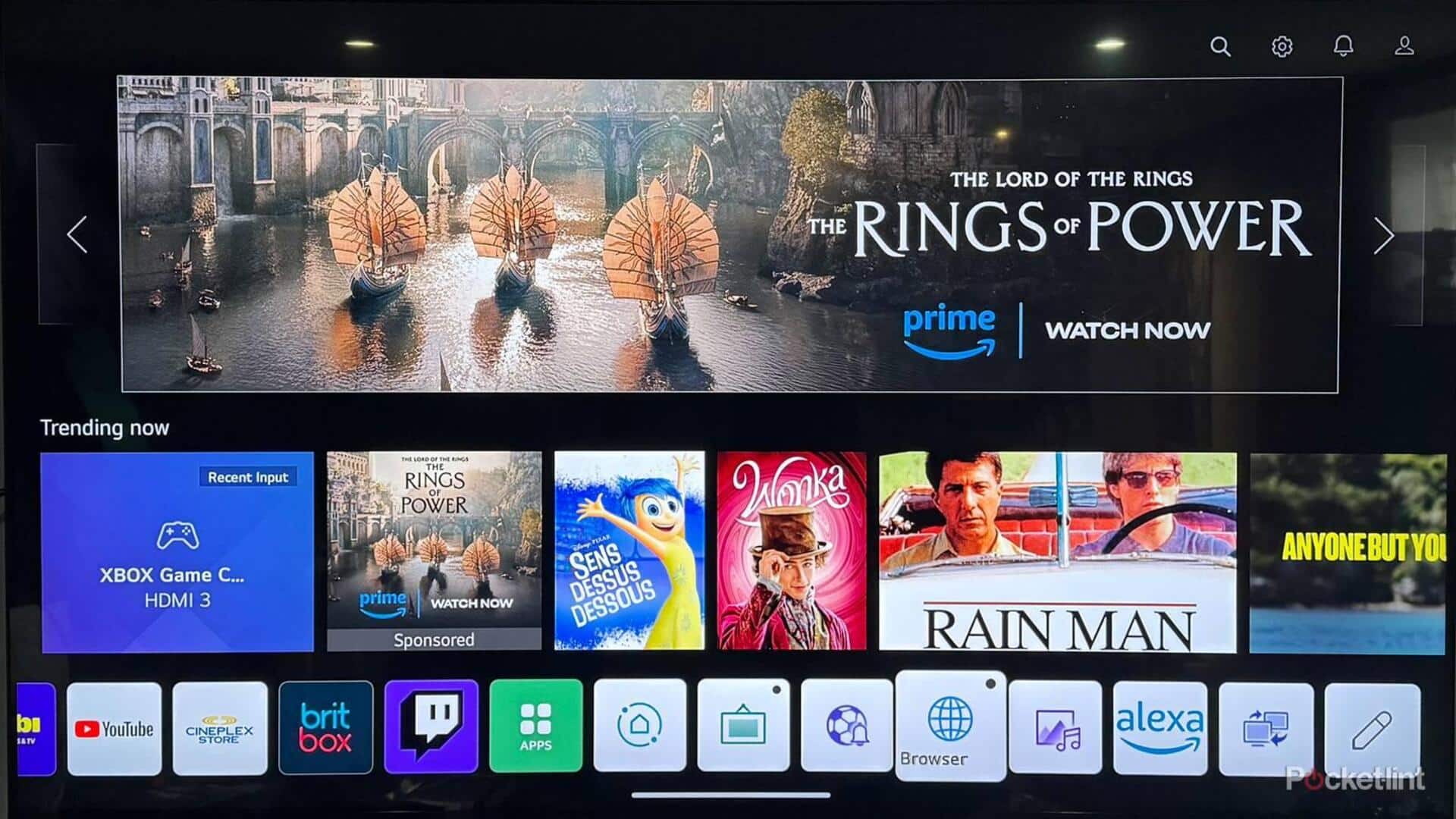
LG smart TV guest mode
LG Smart TVs also provide an easy way to enable guest mode.
Simply go to Settings > General > About This TV > Reset to Initial Settings and select 'Guest Mode'.
This will create a temporary profile for guests, keeping your personal data safe from prying eyes.
Sony setup
Sony smart TV Guest Mode
For Sony Smart TVs, enabling guest mode is as easy as navigating through the settings menu.
Head to Settings > User Preferences > Add User and select 'Guest'.
This creates a separate user profile for guests, ensuring they have access only to the apps you want them to use.
Tcl setup
TCL Smart TV Guest Mode
TCL Smart TVs offer a straightforward way to enable guest mode via their Roku interface.
Go to Settings > System > Power > Power On and select "Guest Mode."
This feature restricts access to personal accounts while giving guests the freedom to enjoy available streaming services without any hassle.