#TechBytes: How to record your screen on Windows
What's the story
Screen recording is an essential tool for many, be it for creating tutorials, capturing gameplay, or sharing technical support. Thankfully, Windows 10 and 11 come with a built-in feature that allows you to record your screen without having to download any third-party software. This feature is part of the Xbox Game Bar, which was originally designed for gamers but has proven useful for anyone needing to capture their screen.
Opening Tool
Accessing Xbox Game Bar
To open the Xbox Game Bar, press the Windows key plus G on your keyboard.
This will open the overlay interface of the Game Bar. From here, you can access various widgets like Capture, Audio, and Performance.
Make sure that the Game Bar is enabled in your settings by going to Settings > Gaming > Xbox Game Bar and toggling it on.
Capturing video
Recording your screen
Once the Xbox Game Bar is open, click on the Capture widget. Here, you'll see options to take screenshots or start recording.
To start recording your screen activity, click on the Record button or press Windows key + Alt + R as a shortcut.
Your recording will start immediately, and a small recording widget will appear on your screen.
Saving files
Managing recordings
After you're done recording, click on Stop in the recording widget or press Windows key + Alt + R again.
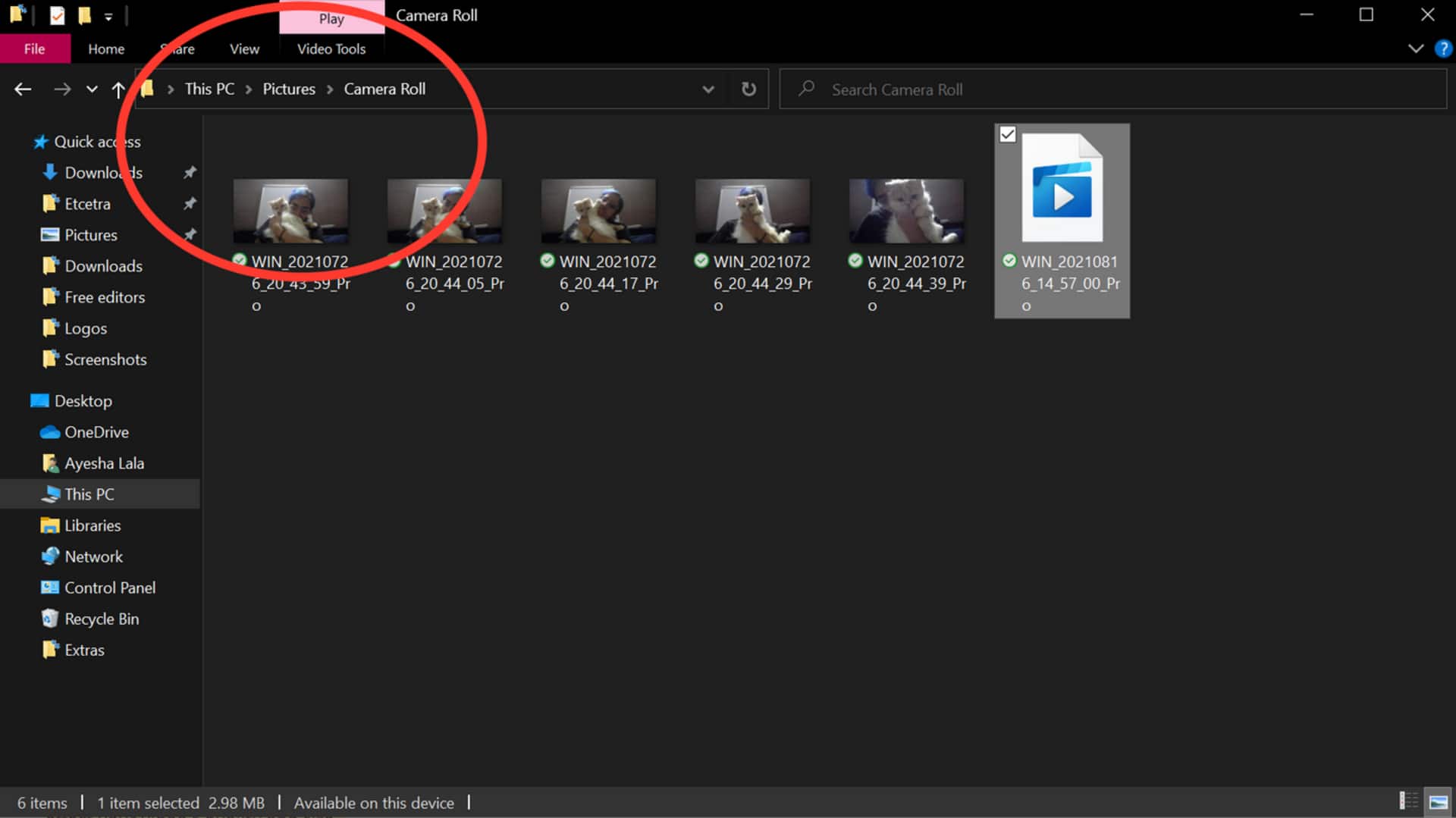
Your video file will be saved automatically in the Captures folder inside your Videos library. You can access it by going to File Explorer > Videos > Captures.
From here, you can view, edit, or share your recorded videos as needed.
Customizing preferences
Adjusting settings
To customize your recording preferences further, go back to Settings > Gaming > Captures.
Here, you can adjust settings like audio quality and whether or not background recording is enabled.
These options let you tailor how screen recordings are captured based on your specific needs and preferences.