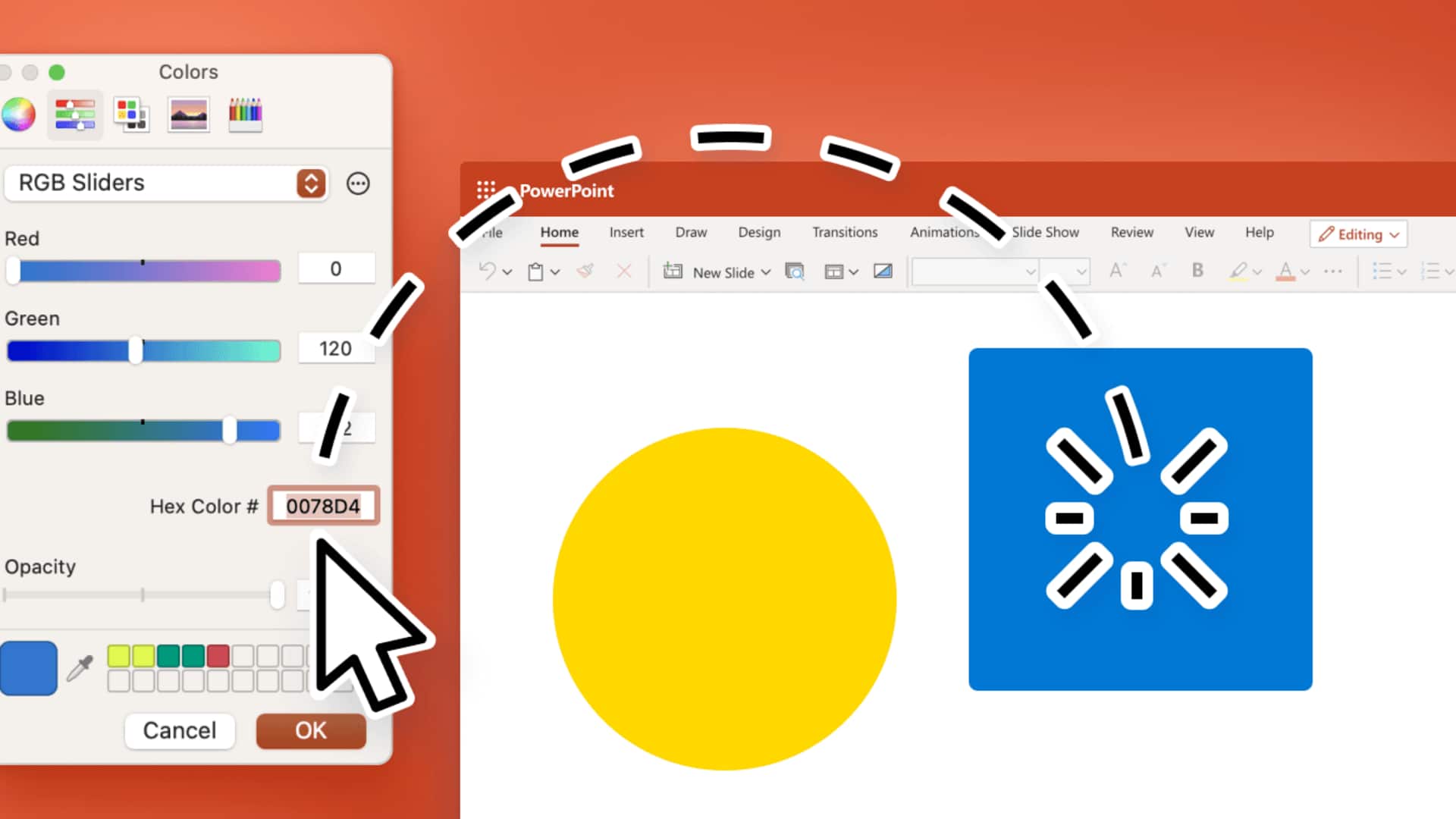
Color extraction using PowerPoint: Is it doable?
What's the story
Microsoft PowerPoint is not just a presentation tool, it can also be used for some creative tasks like extracting colors from images. This feature allows users to pick colors directly from their slides, making it easier to maintain color consistency across presentations. By using PowerPoint's built-in tools, you can easily create cohesive designs without having to rely on external software. Here are some simple steps to extract colors using PowerPoint.
Tip 1
Using the eyedropper tool
The Eyedropper tool in PowerPoint lets you pick any color on your slide and apply it to other elements. To use it, select the shape or text where you want the new color. Click on "Format" and select "Shape Fill" or "Font Color." Choose "Eyedropper" from the menu and click on the desired color from the image on your slide. It's a quick way to match colors perfectly.
Tip 2
Creating custom color palettes
Creating custom color palettes in PowerPoint is an excellent way to ensure consistent branding across your presentations. Start by extracting all necessary colors from an image using the Eyedropper tool. Once you have these colors, go to "Design," then "Colors," and select "Customize Colors." Here, you can save your extracted colors as a new palette for future use.
Tip 3
Utilizing Format Painter
Format Painter is another handy tool in PowerPoint that helps you apply formatting, including color, from one element to another. Just click on the element with the desired color, select Format Painter from the Home tab, and click on the element where you want to apply this formatting. It's an efficient way to replicate exact color settings across different parts of your presentation.
Tip 4
Saving colors as theme colors
To make sure that extracted colors are available for future use, you can save them as theme colors in PowerPoint. After picking your colors with the Eyedropper tool or any other method, go to "Design," then "Colors," and select "Customize Colors." Here, you can add your selected shades into the theme color palette, making them easily accessible for any future projects.