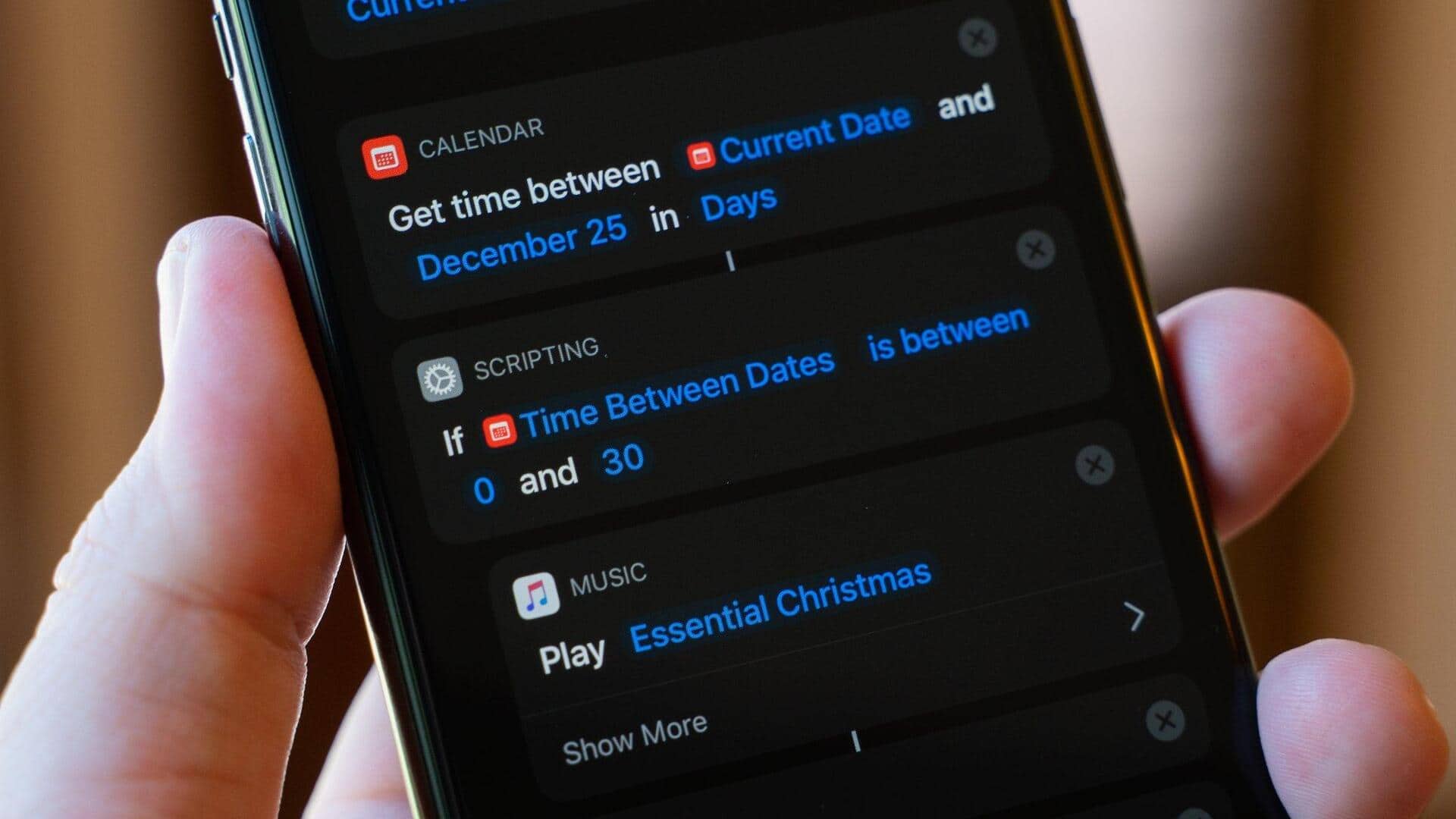
#TechBytes: A beginner's guide to iPhone shortcuts
What's the story
iPhone shortcuts are a powerful tool that can help you automate tasks and save time. For beginners, the world of shortcuts may seem daunting, but with a few simple tips, you can create efficient workflows that make your daily routine easier. Whether it's sending messages at specific times or organizing photos, shortcuts can handle it all. Here are some practical insights to get you started on creating effective iPhone shortcuts.
Tip 1
Start with the Shortcuts app
The Shortcuts app is where all the magic happens.
It's pre-installed on all modern iPhones and gives you access to a plethora of pre-made shortcuts.
Explore the Gallery section to find inspiration and see what others have created.
This will give you an idea of what's possible and help you identify which shortcuts would be useful for your daily tasks.
Tip 2
Use automation for routine tasks
Automation is the best part of iPhone shortcuts.
You can set up automations to trigger actions based on certain conditions, such as time of day or location.
For example, you can create an automation that sends a text message when you leave work or turns on Do Not Disturb mode at bedtime.
This way, you can save time and ensure consistency in your routine.
Tip 3
Leverage scripting capabilities
For those who want to take it a notch higher, scripting capabilities in Shortcuts are a game changer.
With scripting, you can add logic to your shortcuts with if-then statements, loops, and variables.
This way, you can create more complex workflows that react to the context and make your automation even more powerful.
Tip 4
Explore third-party integrations
Many apps also support Shortcuts integration, which means you can control them directly from the Shortcuts app.
From sending data to receiving it from other apps, the possibilities are endless.
Check out the apps that support Shortcuts in their settings or documentation to see how they can enhance your shortcut experience.
Tip 5
Test and refine your shortcuts
Once you've created a shortcut, it's important to test it out thoroughly before relying on it completely.
Run the shortcut multiple times to ensure it works as intended under different conditions.
If something doesn't work as expected, don't hesitate to refine it by tweaking its components or adding additional steps for better accuracy and efficiency.