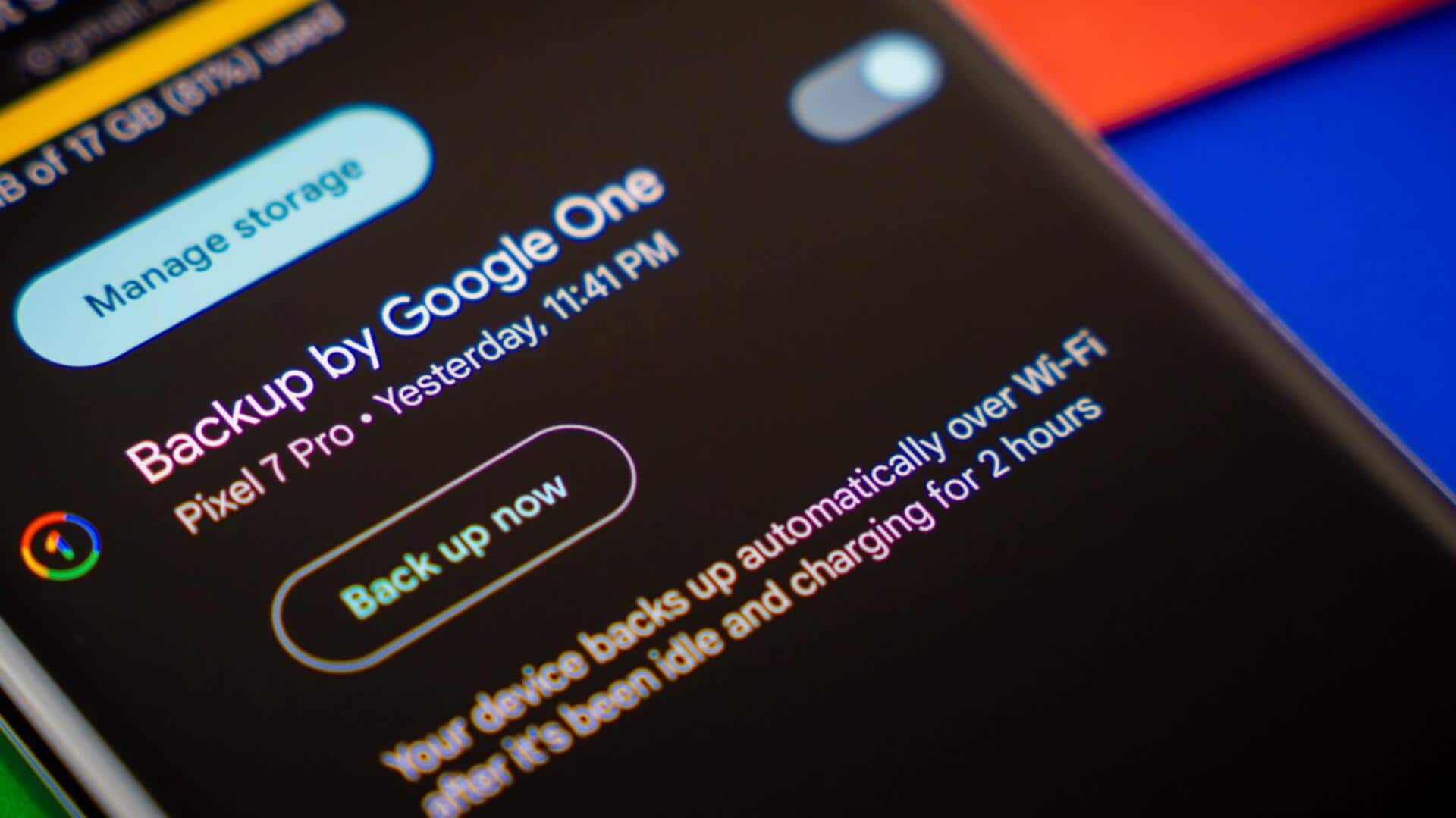
#TechBytes: How to set up automatic smartphone backups
What's the story
In today's digital age, smartphones are our lifelines. They store everything from photos and videos to important documents and contacts. So, keeping this data safe is important, which is why automatic backups come in handy. They make sure that your data is saved without you having to do anything. Here's how you can set up automatic backups on your smartphone, so that your data is safe and you don't lose it.
Cloud backup
Use cloud storage services
Cloud storage services like Google Drive, iCloud, and OneDrive provide an easy way to back up your smartphone data. Just link your phone to the service and choose what to back up.
Most services provide some free storage space, with paid plans for more storage.
This way, you can access your data from anywhere with an internet connection.
Native backup
Enable built-in backup features
Most smartphones come with built-in backup features that automatically save data to the manufacturer's cloud service.
For example, Android devices use Google Drive for backups, while Apple devices use iCloud.
Just enable these features in settings and select what you want to back up, like app data, settings, and media files.
Timed backups
Schedule regular backups
Scheduling regular backups ensures that your data is updated automatically at intervals of your choosing.
You can set daily or weekly backups depending on how frequently your data changes.
This way, you don't have to remember to back up manually every time, making it a foolproof way of keeping your information safe.
App Solutions
Use third-party backup apps
Third-party apps also provide additional options for backing up smartphone data.
These apps usually offer more customization options than native solutions, allowing you to select specific folders or file types to back up.
Some popular options include Dropbox and Samsung Smart Switch, which support both Android and iOS devices.
Check status
Monitor backup status regularly
Regularly checking the status of your backups ensures that they are working properly and your data is not lost.
Most services provide notifications or alerts if something goes wrong with a backup process, like insufficient storage space or connectivity issues.
Keeping an eye on these alerts lets you take action quickly if required.