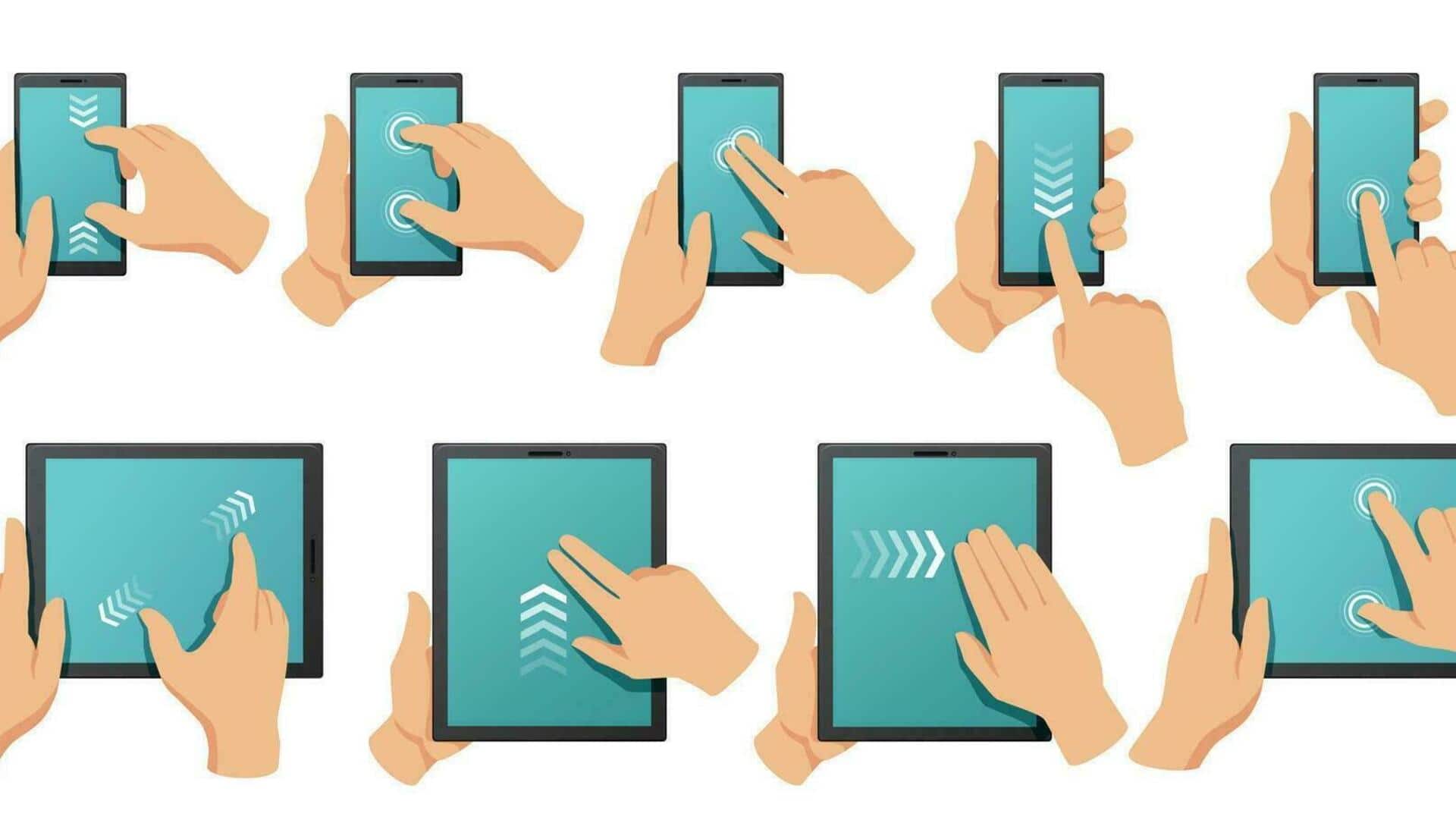
#TechBytes: How to use gestures on your phone
What's the story
Smartphone gestures have become a quintessential part of our daily lives, making navigation and control a whole lot easier. From swiping to pinching, these gestures can make your smartphone experience a whole lot smoother. But, mastering them can be a bit of a task for some. Here are some handy tips to simplify smartphone gesture control, making your interactions with your device more intuitive and efficient.
Tip 1
Mastering swipe gestures
Swipe gestures are the most common way to navigate through apps and menus.
To master them, practice the basic swipes: left, right, up, and down.
Start by opening an app that supports these gestures. Try swiping left or right to switch between screens or up to access additional options.
Consistent practice will help you get comfortable with the motion, making it second nature over time.
Tip 2
Utilizing pinch-to-zoom effectively
The pinch-to-zoom gesture is essential for viewing images or maps in detail.
To use it effectively, place two fingers on the screen and move them apart to zoom in or bring them together to zoom out.
This gesture works best when you need precision, like reading small text or examining intricate details in photos.
Practicing this gesture in different apps will improve your dexterity.
Tip 3
Implementing long press actions
Long press actions give you additional options without cluttering your screen with icons.
To use this gesture, press and hold an item until a menu appears or an action is triggered.
This is commonly used for accessing context menus on icons or selecting multiple items at once.
Familiarize yourself with long press actions in various settings to unlock their full potential.
Tip 4
Customizing gesture settings
Most smartphones let you customize gesture settings according to your preferences.
Go through the settings menu of your device to see if there are any options for adjusting gestures like sensitivity levels or enabling/disabling certain features like double-tap wake-up.
Customizing these settings can make your interaction more comfortable and tailored to how you use your phone daily.