How to clean your desktop computer fans
What's the story
Keeping your desktop computer fan clean is essential for keeping your system cool and efficient. Dust and debris can easily accumulate in the fan, causing overheating and performance issues. Cleaning the fan regularly can ensure that your computer runs smoothly and prolong its lifespan. Here's how you can clean your desktop computer fan effectively, without any fuss.
Tools needed
Gather necessary tools
Before you start cleaning, make sure you have all the necessary tools. A screwdriver set is essential to open the computer case. A can of compressed air will help blow out dust from hard-to-reach areas. You may also need a soft brush or cloth to wipe surfaces gently. Having these tools handy will make the process smoother and more efficient.
Safety first
Power down and unplug your computer
Before you start cleaning, always power down your computer and unplug it from the wall. This is a critical safety measure that protects both you and your device from electrical hazards. It also prevents any accidental damage to the components inside your computer. By ensuring that all power sources are disconnected, you can clean with confidence, knowing that you're minimizing the risk of short circuits or other electrical issues.
Accessing internal components
Open the computer case carefully
Once powered down and unplugged, use a screwdriver to carefully remove screws holding the computer case together. Gently open the case without forcing it, as this could damage internal components or connectors. Accessing the interior of your computer allows you to reach the fan directly for cleaning.
Dust blowing technique
Use compressed air for dust removal
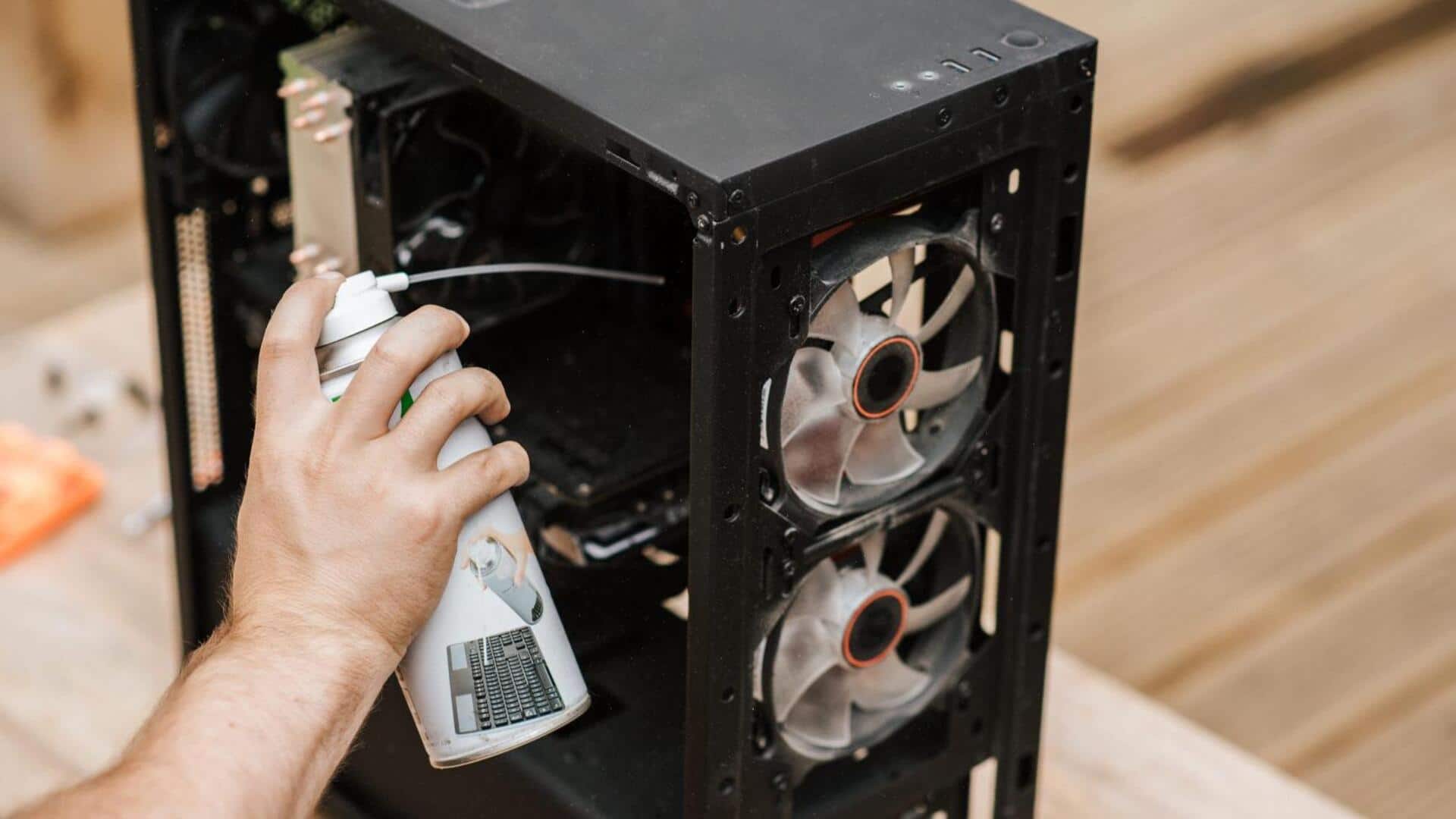
After reaching the fan, use a can of compressed air to blow out dust particles stuck on blades and vents. Hold the can upright while spraying to avoid releasing moisture onto sensitive parts inside your computer. A few short bursts should suffice in dislodging most of the accumulated dust.
Surface cleaning method
Wipe surfaces with soft cloth or brush
For any remaining dust or fingerprints on surfaces around the fan area, use a soft cloth or brush. Gently wipe these areas without applying too much pressure, as this could scratch surfaces or dislodge small components inside your computer. This step helps keep everything looking clean while ensuring optimal airflow around fans.
Final steps
Reassemble computer case securely
After you've cleaned everything thoroughly, it's time to put everything back together securely. Make sure all screws are tightened properly, so no parts are loose when you power up again later on. This ensures that everything is in place and functions as intended once the system is turned back on.