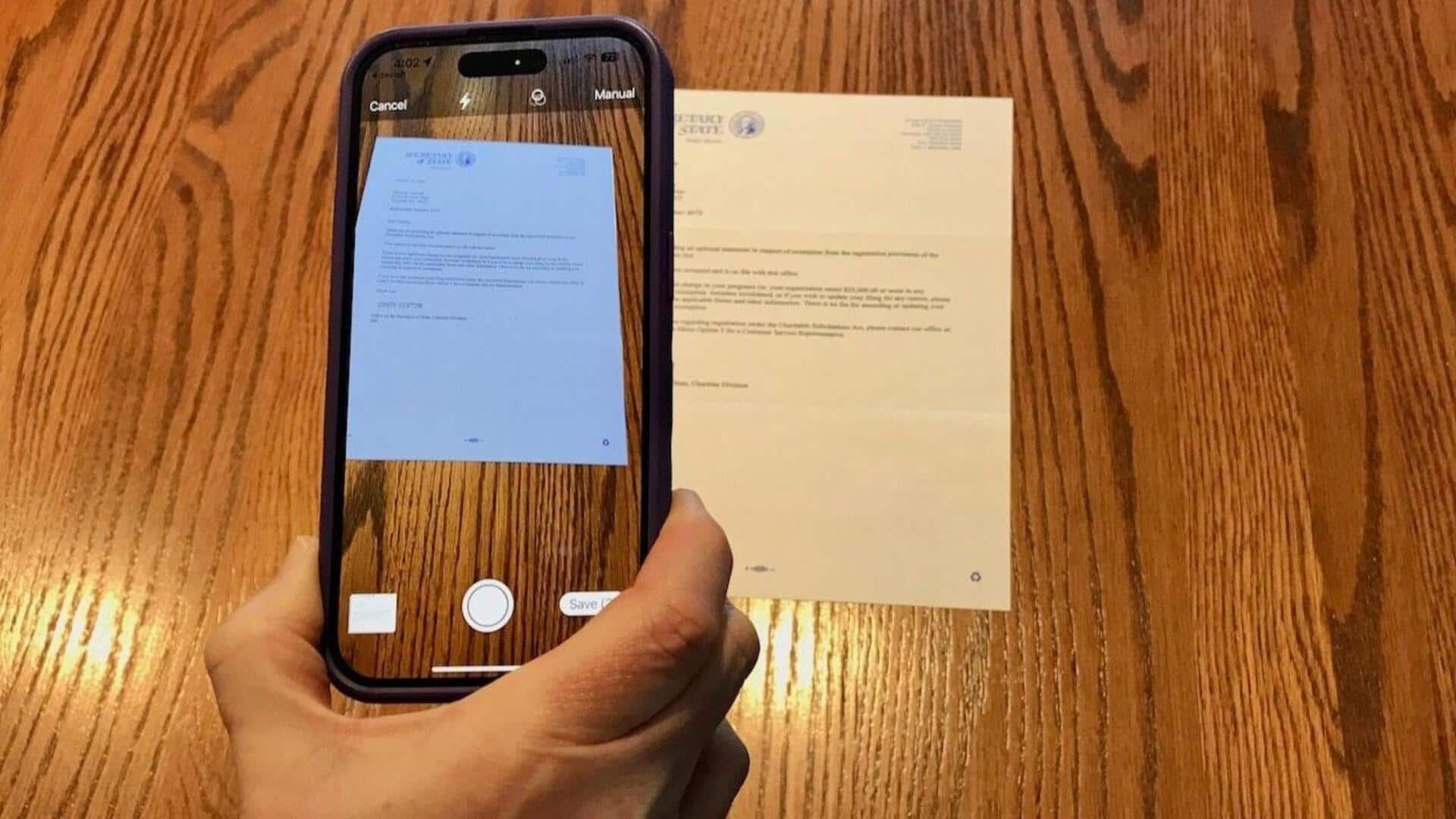
#TechBytes: How to scan documents using your smartphone
What's the story
Scanning documents with a smartphone is a quick and easy way to digitize papers. With the right apps and techniques, you can get clear scans that are almost as good as those from a traditional scanner. This method is especially useful for those who need to manage documents on the go. Here are some practical tips to ensure your smartphone scans are efficient and of high quality.
Tip 1
Use the right app for scanning
Choosing the right app is essential for getting high-quality scans.
Look for apps that offer features like auto-crop, perspective correction, and image enhancement. These features can significantly improve the quality of your scanned documents.
Many apps also support multiple file formats, making it easier to store and share your scans according to your needs.
Tip 2
Ensure proper lighting conditions
Good lighting is the key to clear scans.
Make sure you are in a well-lit area, but avoid direct sunlight as it may cause glare or shadows on the document.
Natural light or soft artificial lighting can work well in most cases. Adjusting the brightness settings within the app can also help improve scan quality.
Tip 3
Maintain steady hands while capturing
Keeping your hands steady while capturing images is important to avoid blurriness in scans.
You can use a tripod or place your phone on a stable surface if available.
Many scanning apps also provide a timer feature that allows you to capture images without having to touch the phone, reducing the chance of movement.
Tip 4
Utilize built-in editing features
Most scanning apps come with built-in editing features that let you fine-tune your scans post-capture.
You can adjust contrast, brightness, and color settings to make sure text is legible and images are clear.
Cropping out unnecessary parts of the image can also save storage space and make files easier to manage.
Tip 5
Organize scanned documents efficiently
Once scanned, organizing documents efficiently makes retrieval easier later on.
Use folders or tags within your app to categorize files by type or date.
Regularly backing up these digital copies to cloud storage services ensures they are safe from loss or damage over time.