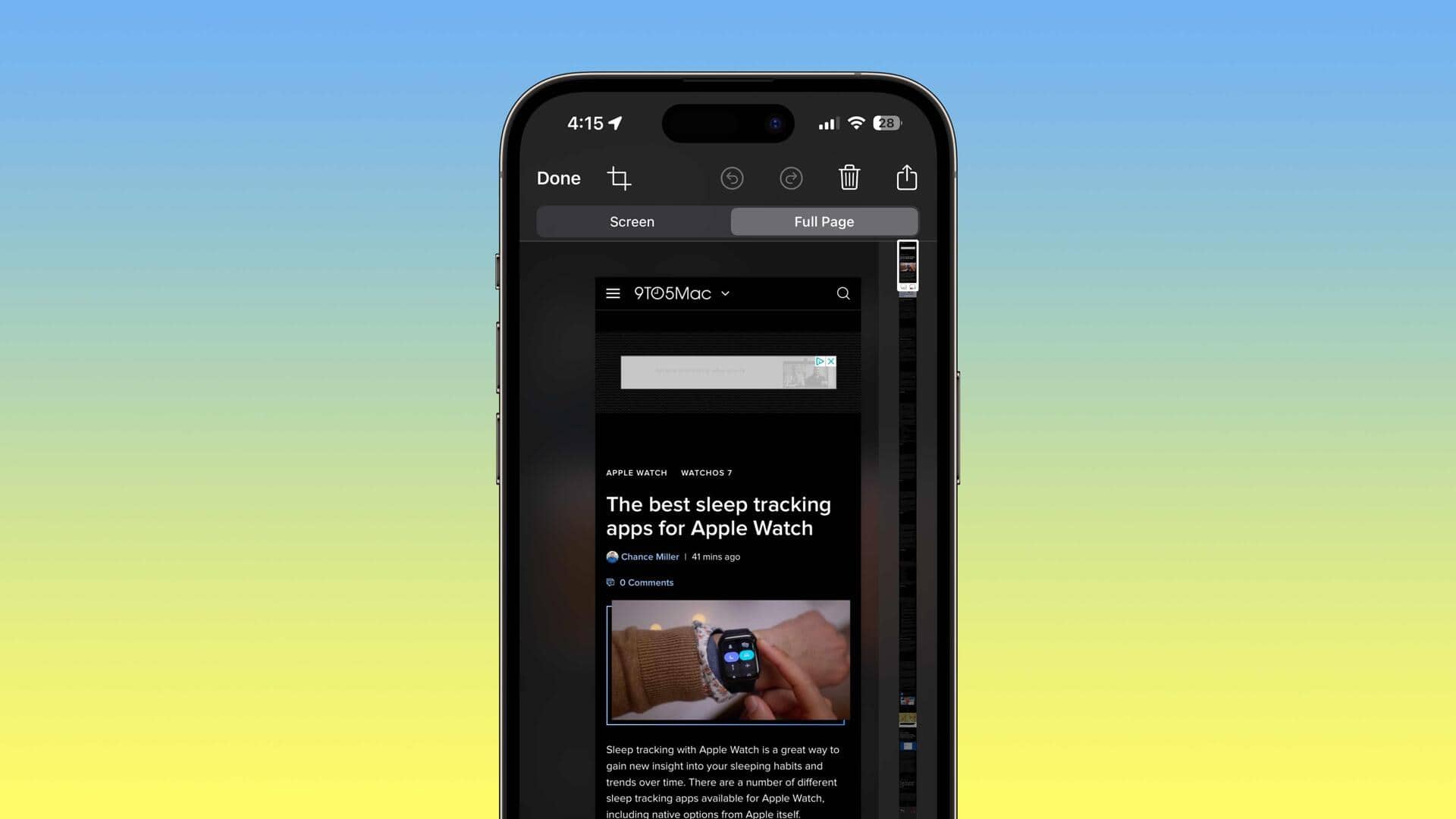
#TechBytes: How to take scrolling screenshots on your smartphone
What's the story
Scrolling screenshots can be a handy tool for capturing long conversations, articles, or any content that doesn't fit on a single screen. Rather than taking multiple screenshots and stitching them together manually, this feature allows you to capture the entire content in one go. Most modern smartphones have this feature, making it easy to save and share long pieces of information without hassle.
Android Method 1
Using built-in features on Android
Most Android devices come with a built-in scrolling screenshot feature. To use it, take a regular screenshot by pressing the power and volume down buttons simultaneously. Once captured, tap on the screenshot preview at the bottom of the screen. A scroll option will appear, allowing you to extend the screenshot downwards until you capture all desired content.
iOS Method 1
Utilizing iOS capabilities
On iOS devices, scrolling screenshots are available for certain apps like Safari and Messages. To take one, press the side button and volume up button simultaneously. Tap on the screenshot preview that appears at the bottom of your screen. Select "Full Page" from the options provided to capture everything in one continuous image.
App Method 1
Third-party apps for extended functionality
If your device does not have built-in support for scrolling screenshots, or if you want more control over how they are captured and edited, consider using third-party apps like Stitch & Share or LongShot. These apps offer additional features like editing tools and customizable capture settings that can enhance your experience.
Tip 1
Tips for effective scrolling screenshots
When taking scrolling screenshots, make sure that your device is stable to avoid blurry images. Use a tripod or keep your hand steady while capturing. Also, close unnecessary apps running in the background to free up memory, which can improve performance and prevent crashes during the screenshot process.