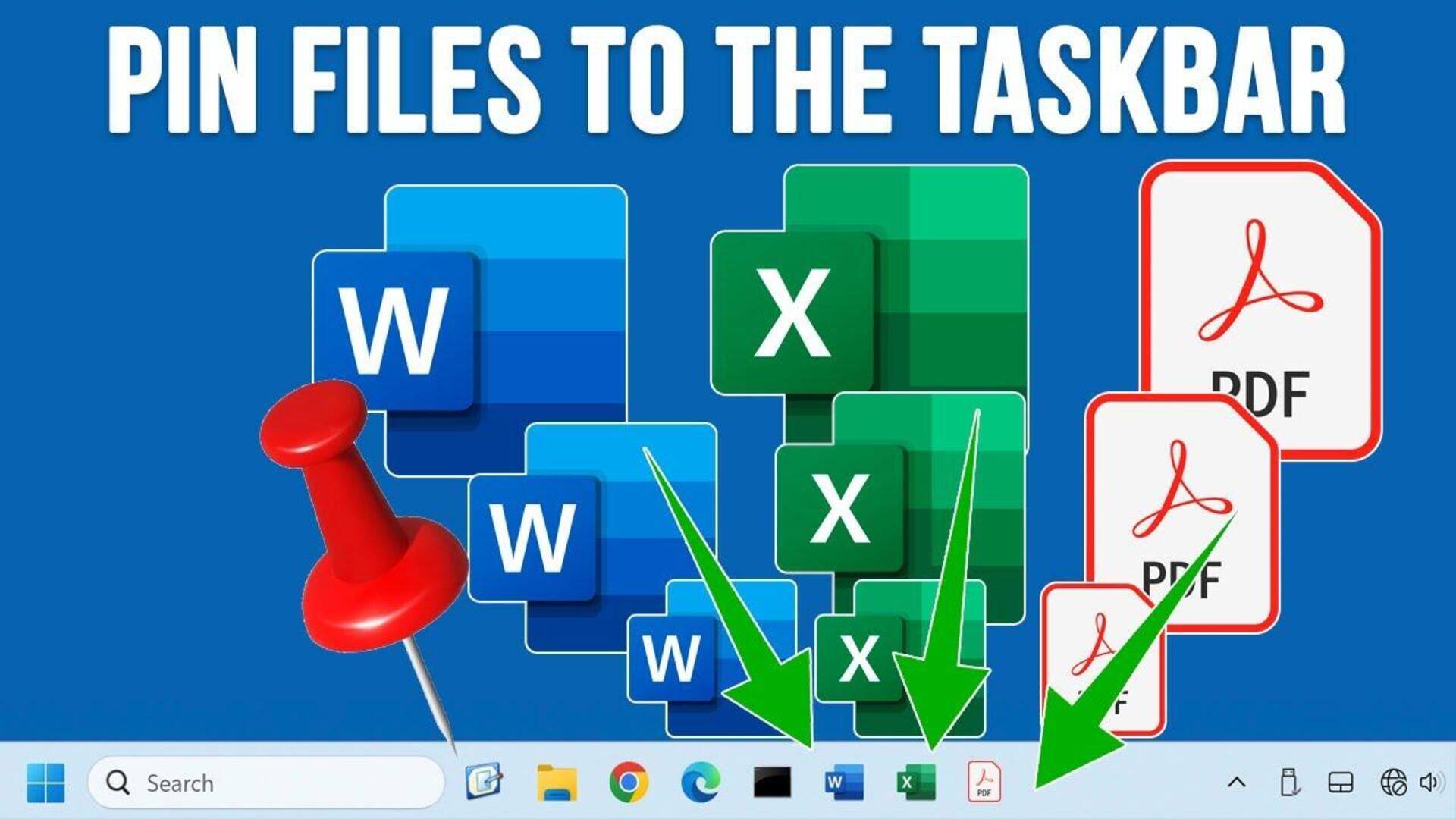
#TechBytes: How to pin files to the Windows taskbar
What's the story
The taskbar in Windows provides quick access to applications and files, which can improve your workflow significantly. By pinning files to the taskbar, you can access them quickly without having to navigate through folders. This not only saves time but also makes your desktop more organized. Here's how you can pin files to the Windows taskbar efficiently, and make your daily tasks easier.
File Explorer
Using File Explorer for pinning
To pin a file to the taskbar, open File Explorer and locate the desired file.
Right-click on the file and select "Pin to taskbar" from the context menu.
This method is straightforward and allows users to pin documents, spreadsheets, or any other supported file types directly from their storage location.
Shortcut creation
Creating shortcuts for pinning
Another way to pin files is by creating shortcuts.
Right-click on the desktop or in any folder, choose New > Shortcut, and browse for the desired file.
Once created, right-click on the shortcut and select "Pin to taskbar."
This method is useful if you want to keep original files in a different location while still accessing them easily.
Drag-and-drop
Utilizing drag-and-drop method
The drag-and-drop method is perhaps the easiest way to pin files to the taskbar.
Just drag a file from File Explorer and drop it onto an empty space on the taskbar.
This way, you can quickly pin frequently used files without any additional steps or menus.
Taskbar settings
Adjusting taskbar settings for better access
Adjusting taskbar settings can also improve file pinning experience.
Right-click on an empty space on the taskbar and select Taskbar settings.
Here, you can enable features like combining taskbar buttons or adjusting icon sizes, which may help in better organizing pinned items, including files.
Unpinning files
Removing unwanted pinned items
To keep your taskbar clutter-free, it's important to remove files that are no longer needed.
Just right-click on any pinned file icon on the taskbar and select "Unpin from taskbar."
This way, only relevant and frequently accessed items remain pinned, ensuring that your workspace is organized and efficient.