#TechBytes: How to use Tasker for Android (A beginner's guide)
What's the story
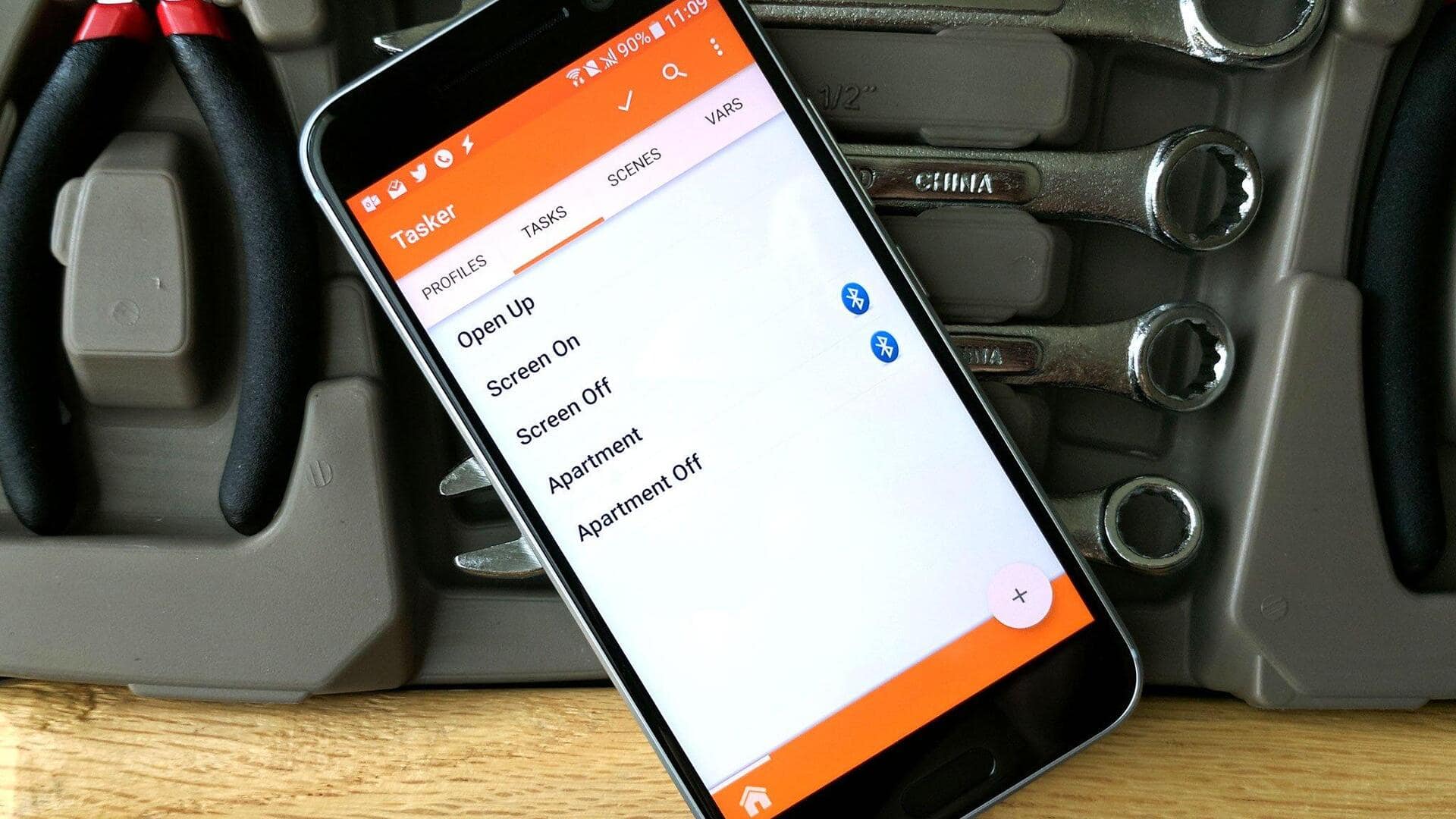
Tasker is a powerful automation app for Android that can help you simplify your daily tasks. With Tasker, you can create custom workflows that respond to various triggers, saving time and effort. Whether you want to automate settings based on location or manage notifications more efficiently, Tasker provides the flexibility to do so. Here's a beginner's guide to using Tasker for everyday automation.
Initial setup
Setting up your first task
To start with Tasker, install the app from the Play Store and grant the necessary permissions.
Create your first task by selecting a trigger (like time or location) and an action (like changing settings or sending notifications).
This basic setup will give you an idea of how tasks are created and executed.
Profile creation
Using profiles for automation
Profiles are the backbone of Tasker automation. They consist of contexts (triggers) and tasks (actions).
For example, you can set a profile that turns on Wi-Fi when you reach home.
To create a profile, click on the "+" icon in the Profiles tab, select a context, and assign a task.
Action exploration
Exploring built-in actions
Tasker has a plethora of built-in actions that you can use to automate several functions on your phone.
These include changing system settings, sending SMS messages, or even controlling media playback.
Go through the list of actions available in the app to find out what suits your needs best.
Plugin integration
Utilizing plugins for extended functionality
For more advanced capabilities, you can integrate plugins with Tasker.
These third-party apps extend Tasker's functionality by adding new actions or contexts.
From security features to enhanced productivity tools, plugins can significantly expand what you can achieve with Tasker.
Just make sure any plugin you choose is compatible with your version of Android.
Issue resolution
Troubleshooting common issues
If your tasks aren't running as expected, check if all permissions are granted and if conditions are correctly set in profiles.
Sometimes, conflicts between multiple tasks can cause unexpected behavior; try disabling other tasks temporarily to identify issues.
Regular updates from developers also help keep the app running smoothly without bugs affecting performance.