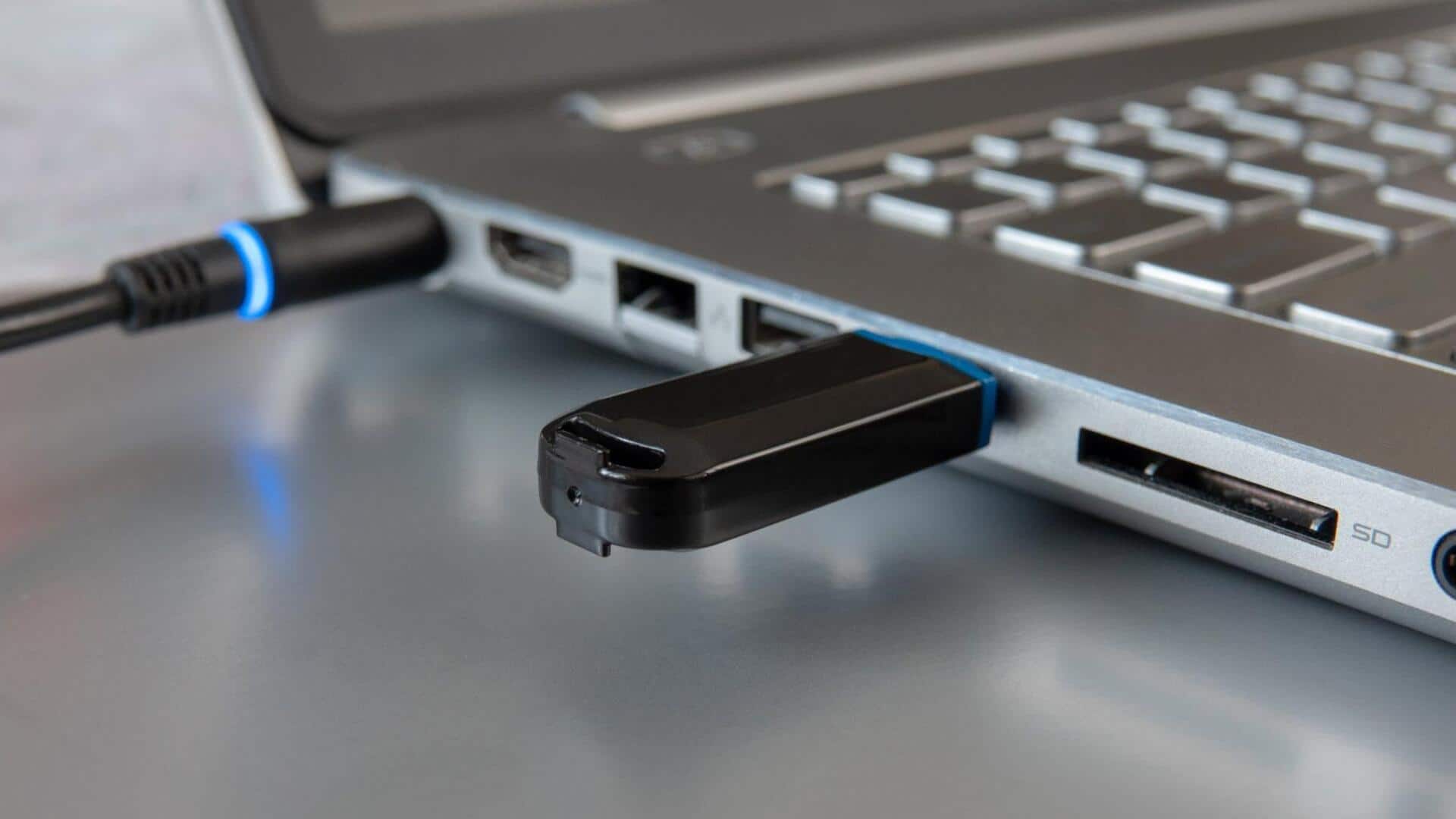
#TechBytes: How to fix a broken USB drive
What's the story
USB drives are an integral part of our daily lives, providing a convenient way to store and transfer data. However, they can sometimes malfunction, leaving you unable to access your important files. While professional data recovery services can be expensive, there are several cost-effective methods you can try at home to potentially recover lost data from a faulty USB drive. Here are some practical tips to help you fix your USB drive without breaking the bank.
Tip 1
Check physical connections
Sometimes, a USB drive may appear faulty due to poor connections. Make sure the drive is properly inserted into the port, and try different USB ports on your computer.
If you're using a laptop, try connecting it to an external keyboard or mouse port.
Dirt or debris in the port can also cause connection issues, so gently clean it with compressed air if necessary.
Tip 2
Use built-in error checking tools
Most operating systems come with built-in tools that can check and repair errors on removable drives.
On Windows, you can use the Error Checking tool by right-clicking on the drive in File Explorer and selecting Properties, Tools, and Check.
For Mac users, open Disk Utility from Applications, Utilities, and select First Aid for the affected drive.
These tools scan for file system errors and attempt repairs without losing data.
Tip 3
Try data recovery software
If your USB drive is still not accessible after physical checks and basic repairs, consider using free or low-cost data recovery software.
These programs scan damaged drives for recoverable files and allow you to restore them without professional help.
Some popular options include Recuva, TestDisk, and PhotoRec.
While they may not guarantee full recovery of all files, they offer a good chance of retrieving lost data at minimal cost.
Tip 4
Format as a last resort
If all else fails and you have backed up any recoverable files, formatting the USB drive may be the last resort.
This process wipes all existing data, but it can sometimes restore functionality by resetting the drive's file system structure.
On Windows, right-click on the drive in File Explorer and select Format; on Mac, use Disk Utility from Applications, Utilities.