
#TechBytes: How to batch-edit photos in GIMP
What's the story
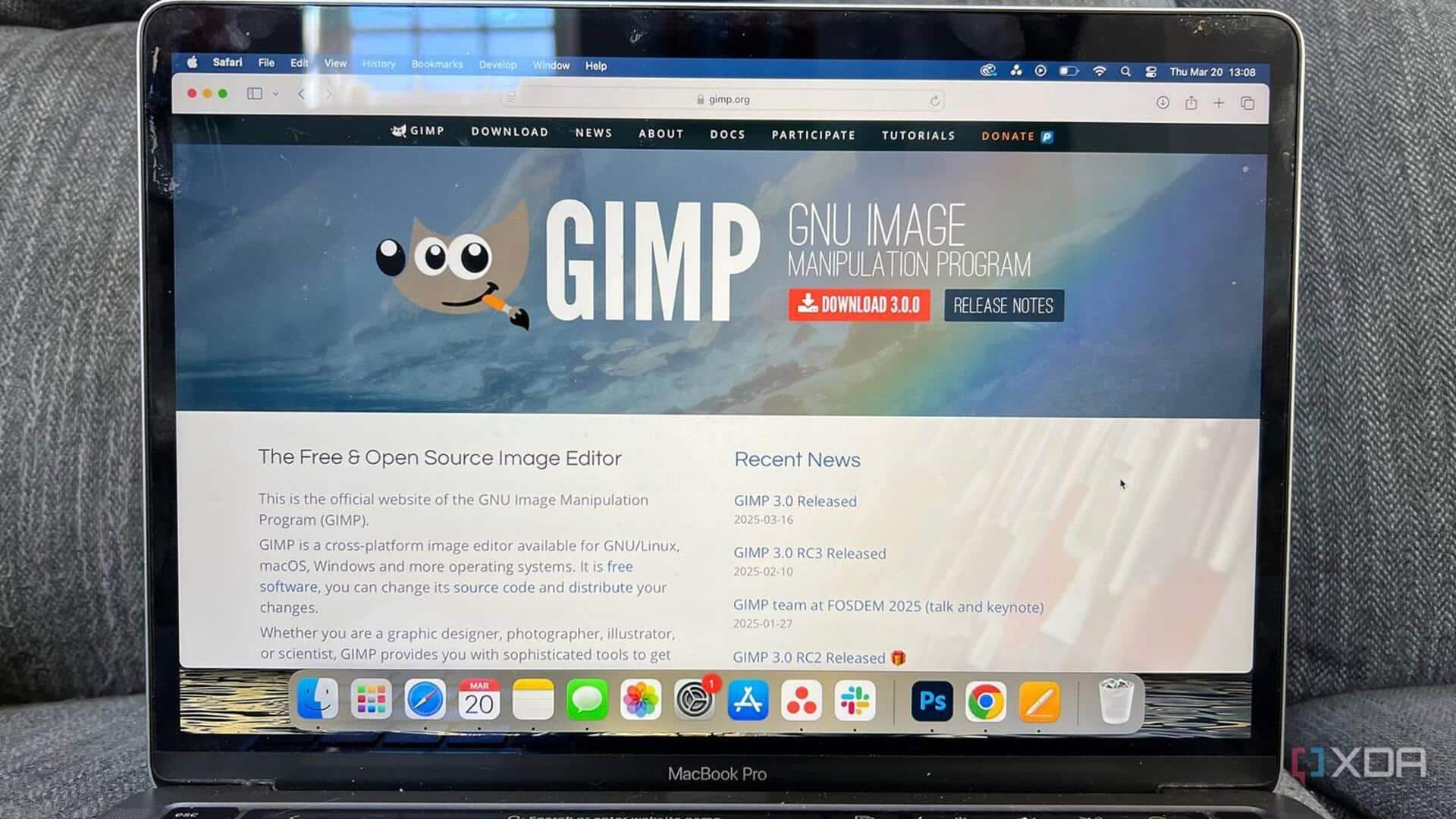
GIMP is a free and open-source photo editing software that can be used for batch processing of images. This feature can save a lot of time for those who need to edit multiple photos at once. With GIMP, you can apply the same adjustments or effects to a whole set of images without having to open each one individually. Here's how to use GIMP for batch processing.
#1
Install GIMP and necessary plugins
To get started with batch processing in GIMP, first install the software on your system. GIMP's basic installation is enough for most users, but additional plugins can further enhance its capabilities. One popular plugin for batch processing is BIMP (Batch Image Manipulation Plugin). It allows you to apply various manipulations like resizing, cropping, and color adjustments on multiple images at once.
#2
Load images into GIMP
Once you have installed GIMP and any necessary plugins, the next step is to load the images you want to process in bulk. You can either open them directly from their folder or use the file import option in GIMP. Make sure all the images are in a format supported by GIMP (like JPEG or PNG) before proceeding.
#3
Apply desired manipulations
After loading your images, it's time to apply the desired manipulations using GIMP's tools or any installed plugins like BIMP. Common tasks include resizing photos for web use or adjusting brightness and contrast levels across all selected files. The key is ensuring consistency across all edits so that each image maintains a uniform look after processing.
#4
Save processed images efficiently
Once you've applied your desired edits in GIMP, save your processed images efficiently by choosing an appropriate file format and quality settings. This ensures an optimal balance between image clarity and file size reduction—important when dealing with large batches of photos intended for online sharing or storage purposes.