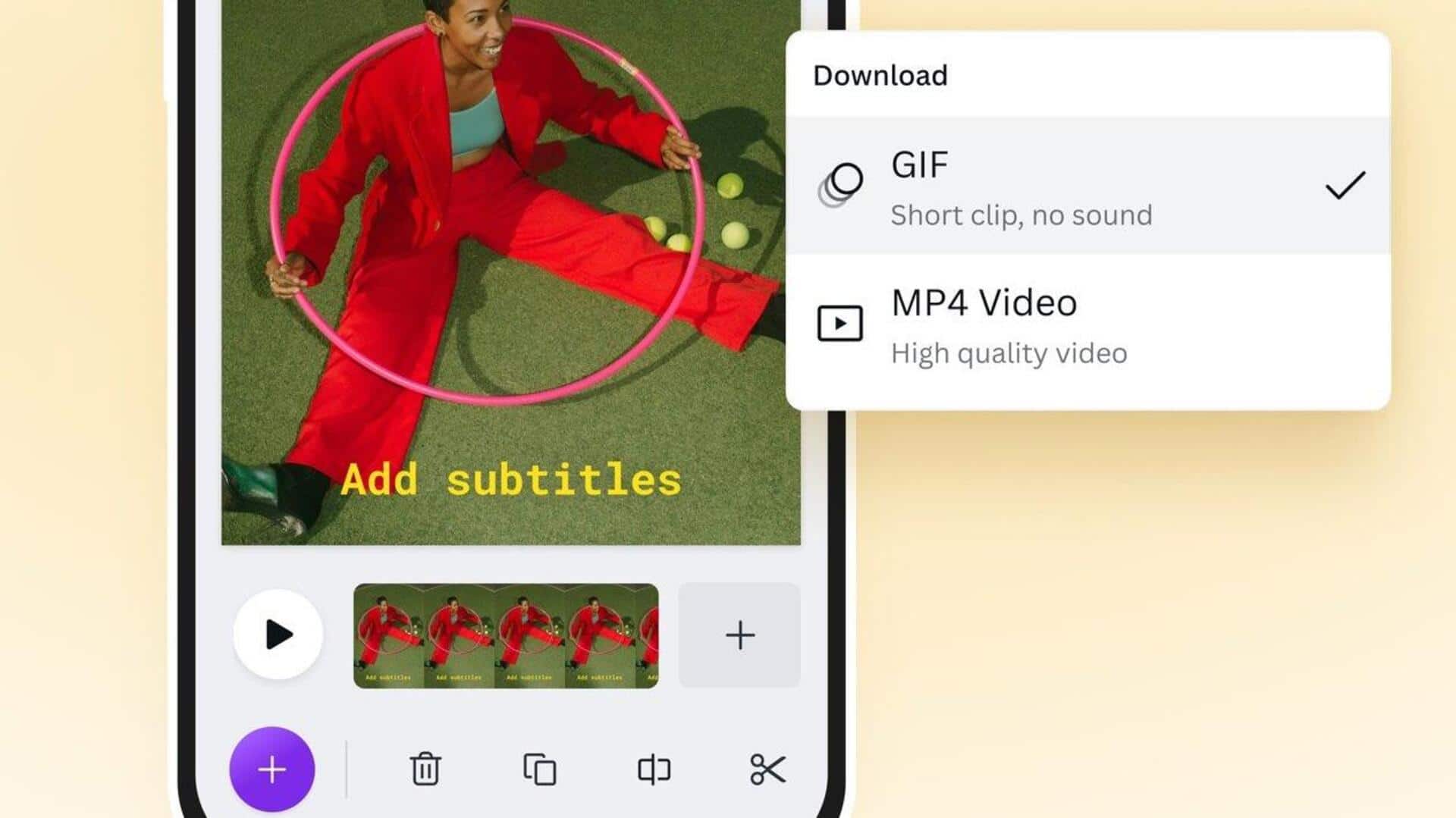
#TechBytes: How to convert screen recordings to GIFs on phone
What's the story
Converting screen recordings into GIFs on mobile devices can be a handy trick. It lets you share snippets of videos easily, without the need for a full-length file. This way, you can share quick tutorials, funny moments, or important information without having to send a long video. The process is usually simple and can be done with a range of apps available on both Android and iOS platforms.
App selection
Choose the right app
Choosing the right app is key to converting screen recordings into GIFs. There are plenty of apps available that do this task efficiently.
Look for features like editing tools, compression options, and ease of use.
Some popular choices include GIPHY Cam and GIF Maker for Android, and ImgPlay and GIF Maker for iOS. These apps offer intuitive interfaces and various customization options to suit your needs.
Video trimming
Trim your video clip
Before converting your screen recording to a GIF, it's important to trim it down to the essentials.
Most apps come with built-in trimming tools that let you cut out unnecessary parts from the beginning and end of the video clip.
This way, you can keep only the most relevant portion in the final GIF, making it more concise and focused.
Frame rate & size
Adjust frame rate and size
Adjusting frame rate and size is important when creating GIFs from screen recordings.
A lower frame rate can reduce file size but may affect smoothness.
On the other hand, adjusting the size ensures that the GIF fits within sharing limits on various platforms without compromising quality too much.
Customization options
Add text or stickers
To make your GIFs more engaging, you can add text or stickers using the editing features of most apps.
This way, you can provide context or add an element of fun to your GIFs, making them more appealing to viewers.
Customization options are usually simple to use, allowing you to personalize your creations easily.
Saving & sharing tips
Save & share your GIF
Once satisfied with your edits, save your GIF in an appropriate format supported by different devices and platforms.
Most apps provide direct sharing options to social media channels or messaging services, making it easier than ever to share your creations with friends or colleagues instantly.