#TechBytes: How to make interactive forms in Excel
What's the story
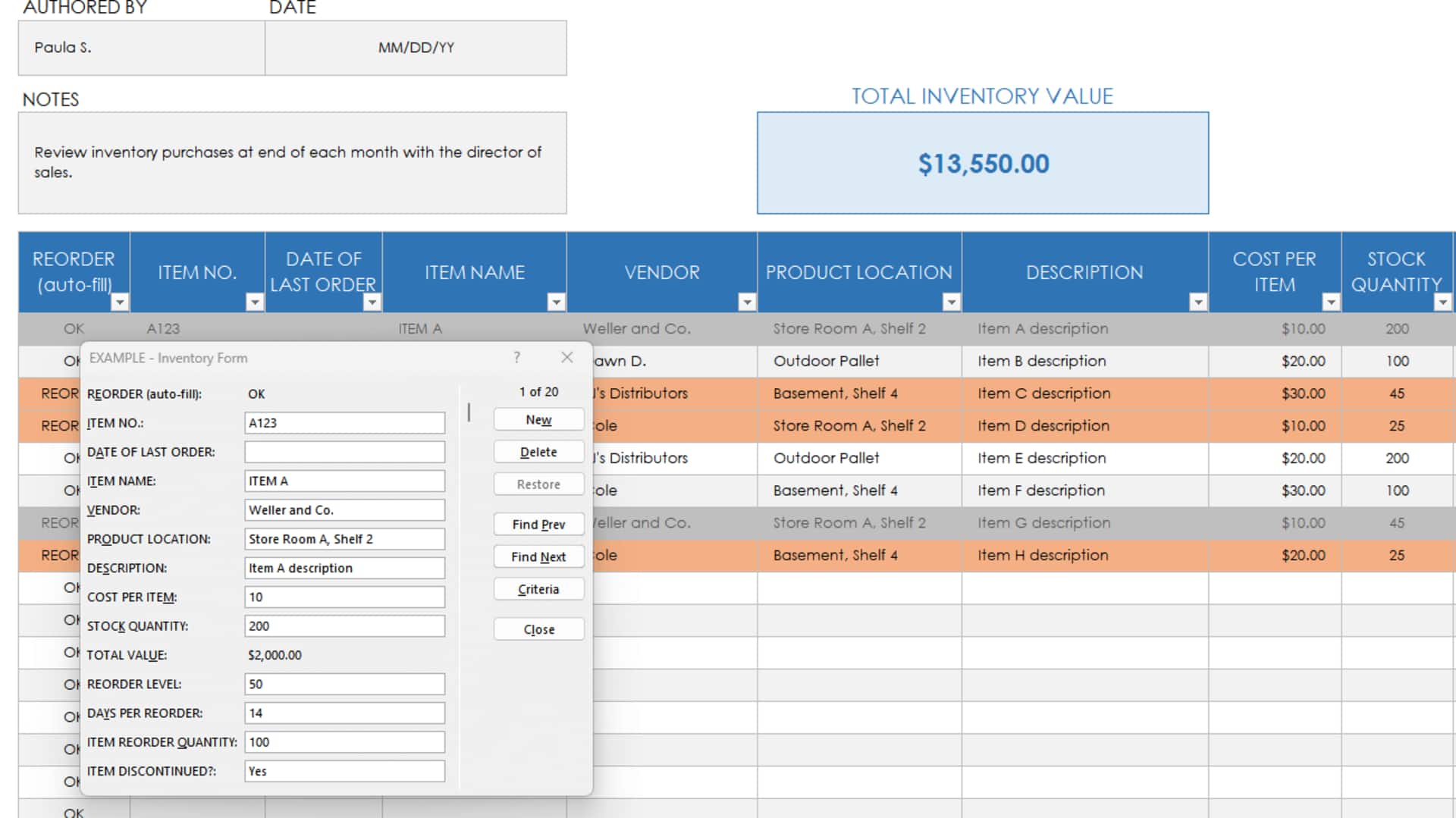
Creating interactive forms in Microsoft Excel can significantly enhance data collection and analysis. By using Excel's built-in features, you can design forms that are not only user-friendly but also efficient in gathering information. This guide provides practical insights into making interactive forms, focusing on essential tools and techniques that streamline the process. Whether you're collecting feedback or managing inventory, these tips will help you create effective forms tailored to your needs.
Tip 1
Utilize data validation for input control
Data validation is a powerful tool in Excel that restricts the type of data entered into cells.
By setting up rules for cell entries, you can ensure that users provide accurate and consistent information.
For example, you can create drop-down lists for predefined options or set numeric limits for certain fields.
This minimizes errors and makes data processing easier.
Tip 2
Implement conditional formatting for visual cues
Conditional formatting adds visual cues to your form based on the data entered.
For example, you can highlight cells with missing information or use color scales to indicate performance levels.
These visual indicators help users quickly identify areas that need attention, improving the overall usability of the form.
Tip 3
Leverage form controls for enhanced interactivity
Form controls like checkboxes, radio buttons, and sliders add interactivity to your Excel forms.
They allow users to make selections easily without having to type everything out.
By adding these controls, you make your form more engaging and easier to fill out. This can lead to more accurate responses.
Tip 4
Use pivot tables for dynamic data analysis
Pivot tables are an amazing way to analyze data collected through your forms.
They allow you to summarize large amounts of data quickly and efficiently, giving you insights into trends and patterns.
With pivot tables, you can easily manipulate the data without having to change the original entries, making them an invaluable tool for any interactive form project.
Tip 5
Protect your form with password security
To ensure the integrity of your Excel form, you can add password protection.
This way, only authorized users can edit certain parts of the document, while others can fill it out freely.
Password security is especially important when dealing with sensitive information or when multiple people have access to the same file.