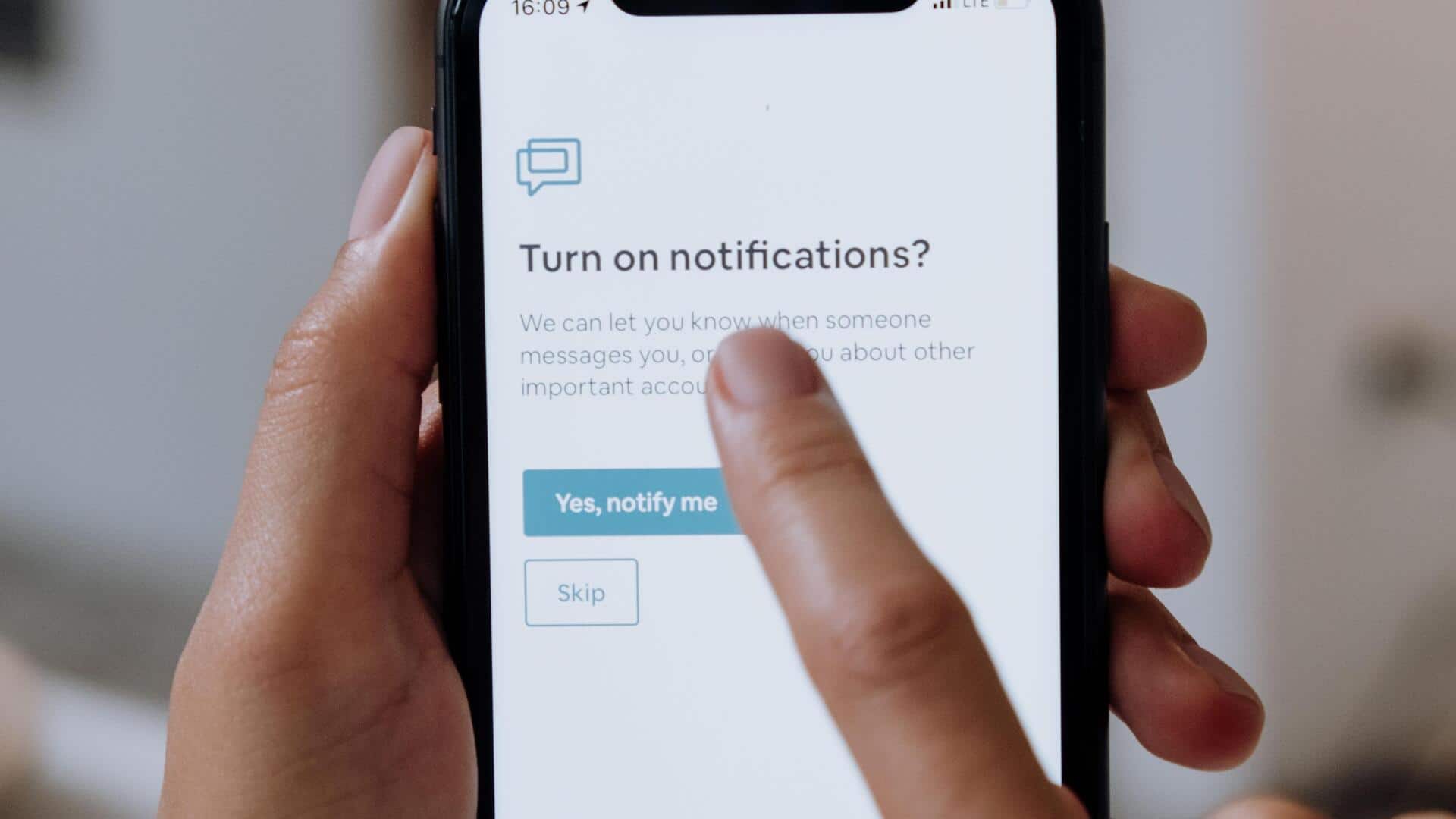
Smart ways to manage smartphone notifications
What's the story
Managing app notifications on your smartphone can significantly enhance your productivity and reduce distractions. With the constant influx of alerts from various apps, it can be challenging to focus on important tasks. However, by strategically managing these notifications, you can create a more streamlined digital environment. This article provides practical tips to help you customize and control app notifications effectively.
Tip 1
Prioritize essential notifications
Start by identifying which notifications are essential for your daily activities.
Prioritize alerts from apps that are crucial for work or personal life, such as email and calendar apps.
By focusing on essential notifications, you can reduce the noise from less important alerts and stay focused on what matters most.
Tip 2
Use do not disturb mode wisely
Do Not Disturb mode is a powerful tool for managing app notifications during specific times of the day.
Use this feature to block all nonessential alerts while working or during personal time when you need to concentrate.
Customize the settings so that only critical contacts or apps can bypass this mode, ensuring minimal disruption.
Tip 3
Customize notification settings per app
Most smartphones allow you to customize notification settings for each app individually.
Take advantage of this feature by adjusting sound, vibration, and visual alert preferences according to your needs.
For instance, turn off sound alerts for social media apps while keeping them enabled for messaging services.
Tip 4
Schedule notification breaks
Scheduling breaks from notifications can help you recharge without constant digital interruptions.
Set specific times during the day when you check notifications in batches instead of responding immediately as they arrive.
This practice encourages focused work periods, followed by brief intervals dedicated solely to reviewing missed alerts.
Tip 5
Leverage focus modes if available
If your smartphone has Focus modes, leverage them to manage app notifications based on activities like work or leisure.
These modes automatically adjust settings based on context, silencing unnecessary distractions when you are busy with tasks like reading or exercising, and allowing only relevant updates during those times.