
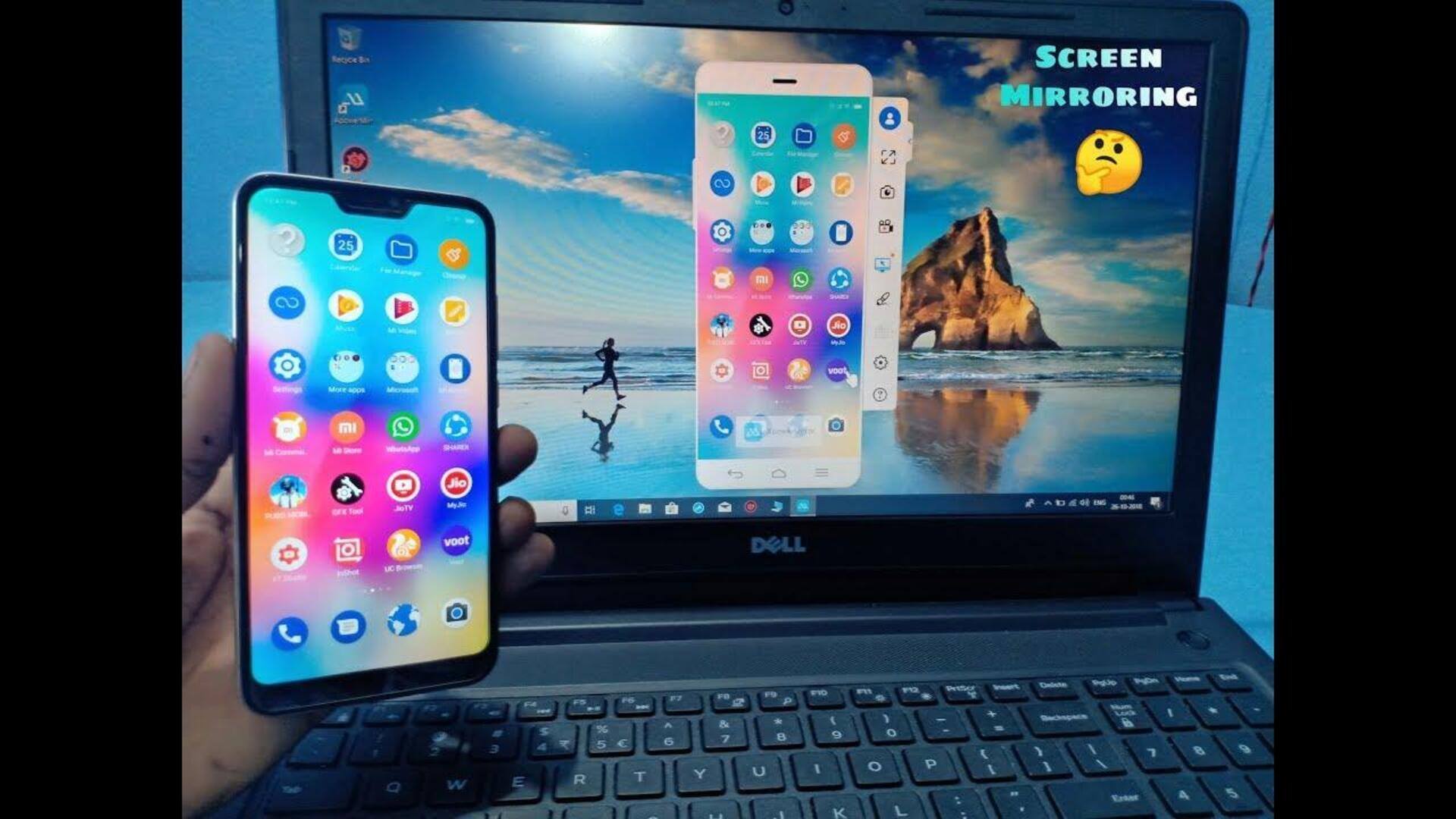
#TechBytes: How to mirror smartphone screen to your laptop
What's the story
Mirroring your smartphone screen to a laptop can be an efficient way to access apps, share content, or even work on the go. The process is relatively simple and can be done without any additional hardware. By following a few steps, you can have your smartphone's display mirrored on your laptop in no time. Here's how you can do it seamlessly.
Native tools
Using built-in features
Most smartphones and laptops come with built-in features that allow screen mirroring without the need for third-party apps. For example, Windows laptops support the Connect app, which works with Android devices using Miracast technology. Simply enable screen mirroring on both devices and connect them over the same Wi-Fi network to get started.
App solutions
Utilizing third-party apps
If built-in features aren't compatible or convenient, several third-party apps facilitate screen mirroring across different platforms. Apps like AirDroid and Vysor allow you to mirror your smartphone's screen on your laptop easily. Just install the app on both devices, follow the setup instructions, and enjoy seamless connectivity.
Network stability
Ensuring stable Wi-Fi connection
A stable Wi-Fi connection is key to smooth screen mirroring. Make sure both your smartphone and laptop are connected to the same network with a strong signal. Avoid bandwidth-heavy activities while mirroring to maintain a stable connection and prevent lag or disconnection issues.
Display optimization
Adjusting display settings
Once your smartphone screen is mirrored on your laptop, you may need to adjust display settings for optimal viewing. You can change resolution settings or adjust the scaling options in your laptop's display settings menu. This ensures that the mirrored content appears clearly and is easy to navigate.