#TechBytes: How to multitask on your tablet
What's the story
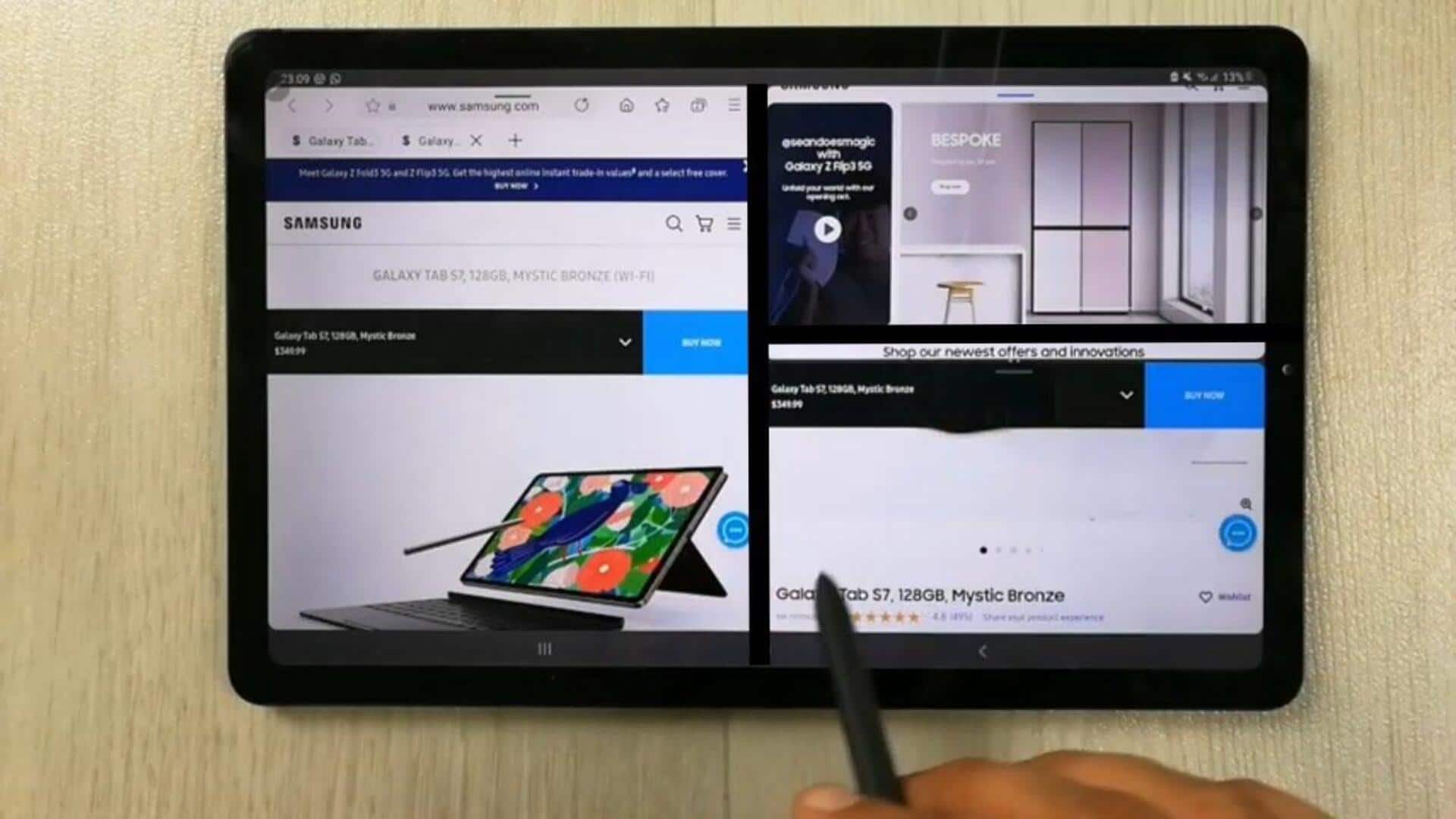
Tablet multitasking is a game-changer, letting you do multiple tasks at once, making your productivity skyrocket. By using split-screen and other features, you can easily switch between apps, making your workflow seamless. Be it work or leisure, mastering multitasking can save you time and effort. Here are some practical tips to help you use your tablet's multitasking capabilities to the fullest.
Tip 1
Use split-screen for efficiency
Split-screen mode lets you use two apps side by side, making it easier to multitask. Just open the first app, then swipe from the edge of the screen to bring up the app drawer. Drag the second app to the top or bottom of the screen to activate split-screen mode. This way, you can take notes while watching a tutorial or compare documents without having to switch between them.
Tip 2
Utilize Picture-in-Picture mode
Picture-in-picture mode is another handy feature that allows a small window of video content to float over other apps. This way, you can watch a video call or a movie while browsing the web or working on a document. Just tap on the picture-in-picture icon when available, and resize the window as per your convenience.
Tip 3
Customize Quick Settings panel
The quick settings panel gives you easy access to frequently used features like Wi-Fi, Bluetooth, and brightness controls. Customizing this panel lets you add shortcuts for apps or functions that you use often during multitasking sessions. Swipe down from the top of the screen to access this panel and make changes according to your preferences.
Tip 4
Organize apps with folders
Creating folders for similar apps can make it easier to find what you need when multitasking. Group productivity tools together or entertainment apps in one folder so that they are easy to find during work hours or leisure time activities. Just drag one app over another on the home screen to create a folder and name it accordingly.
Tip 5
Explore third-party multitasking apps
If your tablet's native features do not meet your needs, consider exploring third-party multitasking apps from trusted sources like Google Play Store or Apple App Store. These apps often come with advanced capabilities like floating windows or enhanced split-screen options tailored for specific tasks such as coding or graphic design work.