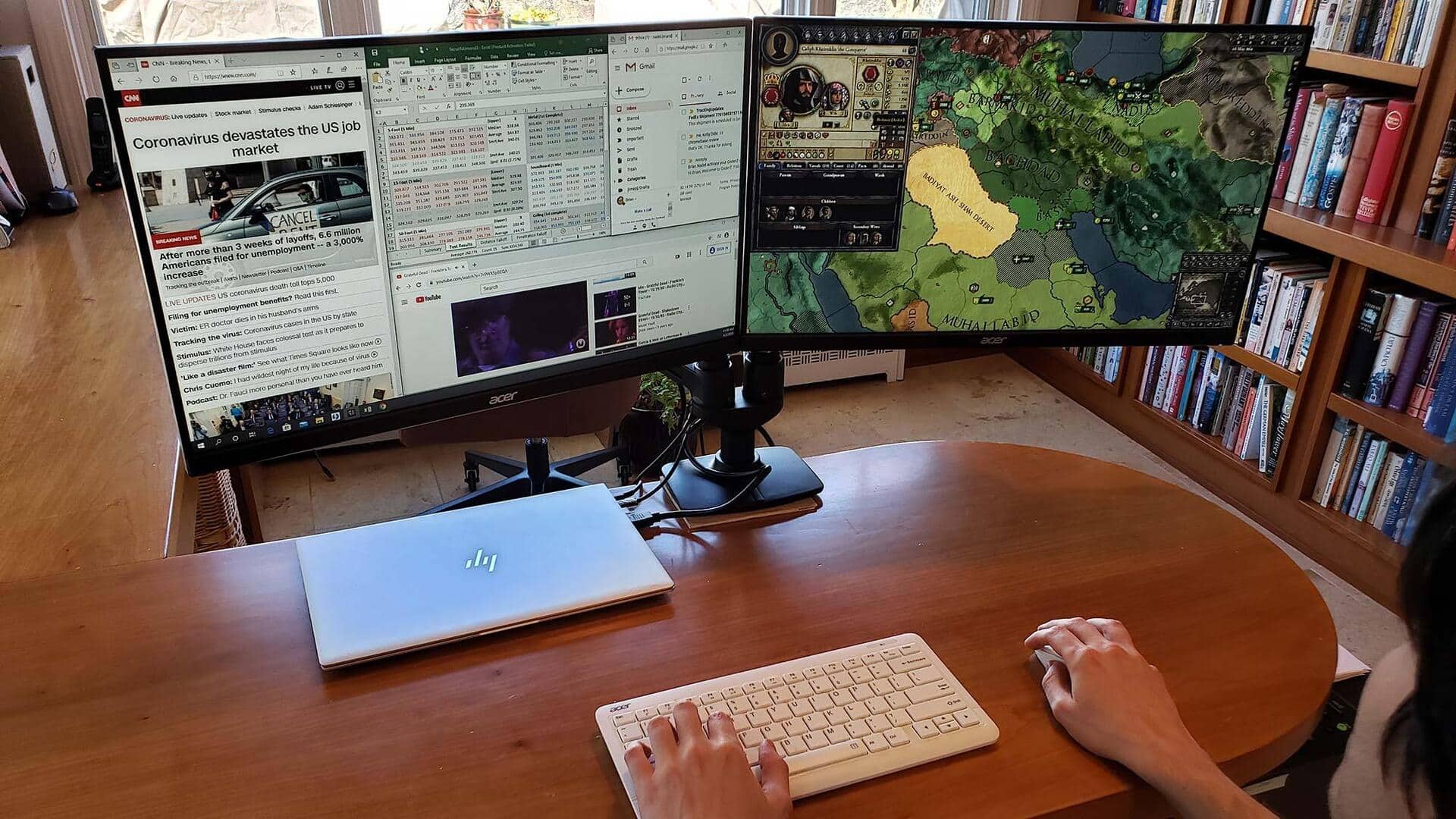
#TechBytes: How to set up dual monitors with your laptop
What's the story
Setting up dual monitors with a laptop can significantly enhance productivity by providing more screen real estate for multitasking. Whether you're looking to expand your workspace or simply want more room for applications, connecting two monitors is a straightforward process. This guide will walk you through the steps to effectively set up dual monitors, ensuring that you can maximize your workspace efficiently.
Compatibility
Check your laptop's compatibility
Before proceeding, it's important to check if your laptop supports dual monitor setups. Most modern laptops come with at least one HDMI or DisplayPort output, but some may require adapters for VGA or Mini DisplayPort connections. Check your laptop's specifications and ensure it has the necessary ports to connect two external monitors.
Connections
Choose the right cables and adapters
Once you've confirmed compatibility, choose the appropriate cables and adapters for your monitors. HDMI cables are commonly used due to their ease of use and ability to transmit both video and audio signals. If your monitors have different input options, make sure you have the right adapters to connect them to your laptop's outputs.
Settings
Configure display settings in operating system
After physically connecting the monitors, adjust the display settings in your operating system. In Windows, right-click on the desktop and select Display settings. Here, you can choose how you want to use the monitors—extend or duplicate displays—and adjust resolution settings as needed. For Mac users, go to System Preferences > Displays to configure monitor arrangements.
Arrangement
Arrange monitors for optimal workflow
Positioning your monitors correctly can improve workflow efficiency. Dragging monitor icons in display settings lets you arrange them according to their physical placement on your desk. This way, moving windows between screens feels natural and intuitive.
Troubleshooting
Troubleshoot common issues
If you encounter issues like flickering screens or poor resolution after setting up dual monitors, check cable connections first. Ensure they are secure on both ends. Update graphics drivers if necessary, as outdated drivers can cause compatibility problems with multiple displays.