#TechBytes: How to set default browser on Windows 11
What's the story
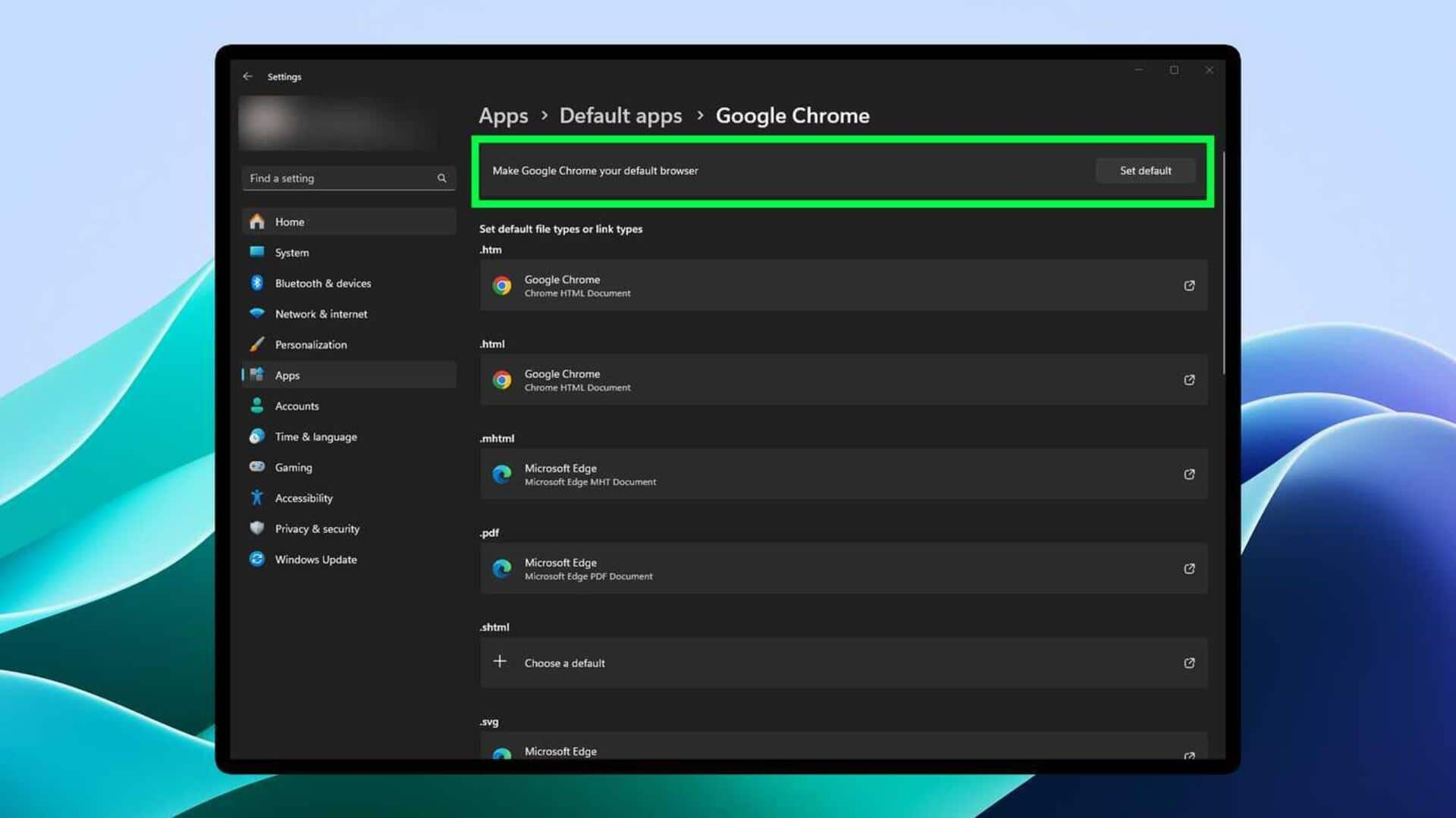
Windows 11 has a new way of setting the default browser, which may confuse some users. Unlike previous versions, you can't just set one browser for all activities. Instead, you have to set defaults for each file type and link type. This guide will help you navigate through this process easily, so you can set your preferred browser for different web activities.
Settings access
Accessing Default Apps settings
To begin with, open the Settings app on your Windows 11 device. You can do this by clicking on the Start menu and selecting Settings or pressing Windows key + I. Once in Settings, click on Apps from the left sidebar and select Default apps from the options provided. This will take you to a list of all installed applications and their associated file types and link types.
Browser selection
Choosing your preferred browser
In the Default apps section, scroll down until you find your preferred web browser from the list of installed apps. Click on it to see a list of file types and link types it can handle. These include HTTP, HTTPS protocols, .htm files, and so on. Click on each type one by one to set your chosen browser as default for each activity.
File type settings
Setting file type associations
For each file type or link type, click on it to view available options for handling it. Select your preferred browser from the list of available apps. Windows will prompt you with a confirmation message asking if you want to change the default app for that specific activity. Confirm by clicking 'Yes' or 'OK' to save your changes.
Link type management
Managing link types efficiently
Link types are just as important as file types when it comes to web browsing activities. In the Default apps section, scroll down until you see HTTP and HTTPS protocols listed under their respective categories. Click on these entries one by one, select your preferred browser from the list of available options, and confirm by clicking 'Yes' or 'OK'. This way, every time you click on a web link, it opens in your selected browser.
Issue resolution tips
Troubleshooting common issues
If you run into problems while setting defaults, make sure that all updates are installed on both Windows OS and the browsers themselves. Sometimes, outdated software versions can lead to unexpected behavior while changing settings. Restarting the device after making changes can also help in applying them effectively across the system without any glitches or errors occurring during the process.