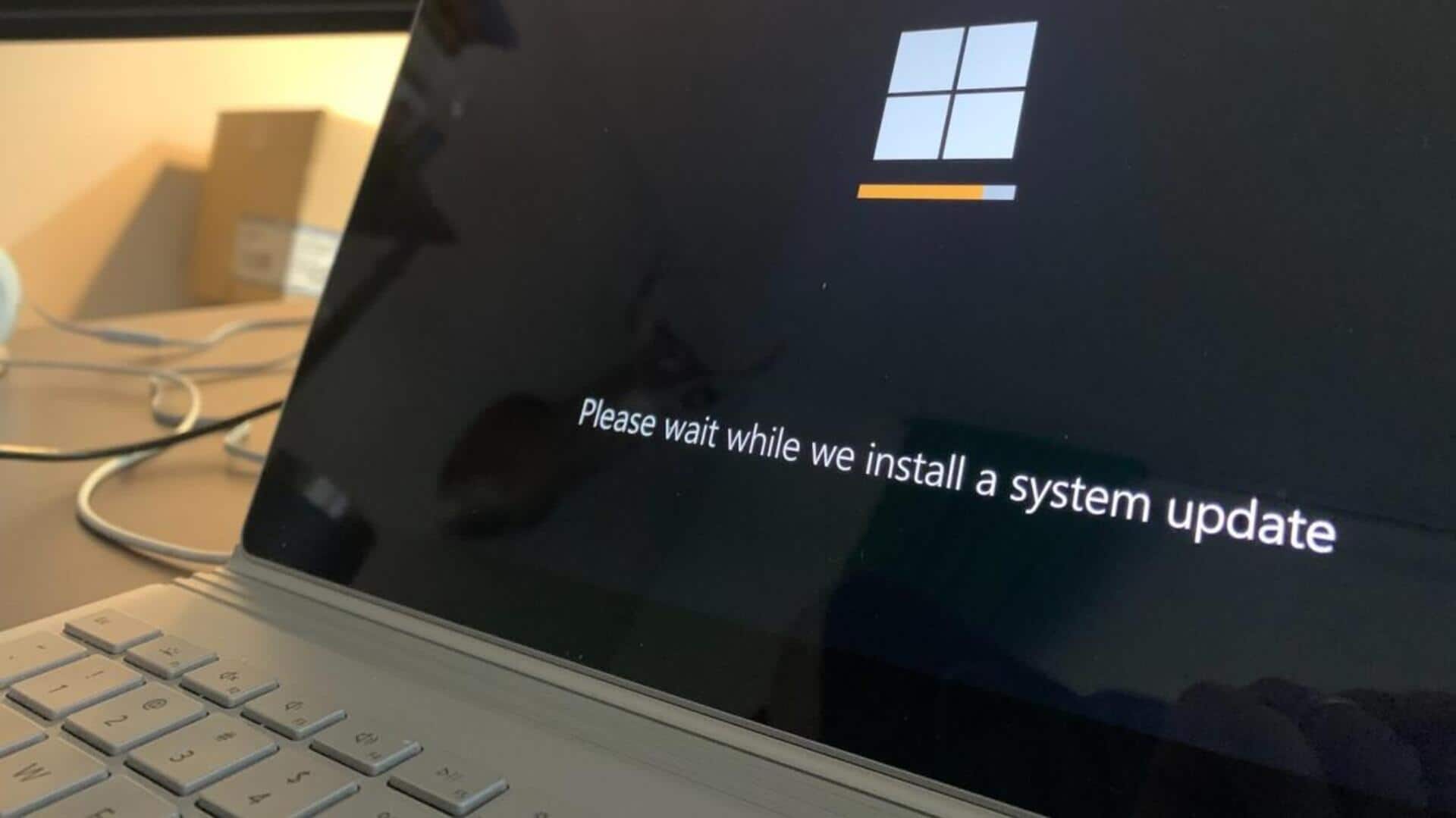
#TechBytes: How to keep your system up-to-date
What's the story
Keeping your system up-to-date is essential for security and performance. Scheduling automatic software updates can save time and ensure that your system is always running the latest version of its software. This way, you do not have to remember to manually check for updates and can focus on other tasks. Here is how you can schedule these updates on different systems.
Windows tips
Windows update scheduling
In Windows, you can schedule updates via the Settings app. Go to Update and Security, then Windows Update.
Here, you can select advanced options to set active hours when updates will not disrupt your work.
While you cannot set a specific time for all updates, you can ensure that restarts happen outside of active hours.
macOS tips
macOS automatic updates
For macOS users, automatic updates are easy to set up.
Head to System Preferences, and click on Software Update.
From here, you can check the box for *Automatically keep my Mac up to date*.
This ensures that macOS and app updates are installed automatically, keeping your system secure and efficient.
Linux tips
Linux update management
Linux distributions have different ways of managing updates, depending on the desktop environment and package manager in use.
Most distros offer a graphical interface or command-line tools like APT or YUM for scheduling updates.
Users can set up cron jobs or use tools like *Unattended Upgrades* in Debian-based systems to automate the process.
Mobile tips
Mobile device updates
Mobile devices also provide options for automatic software updates.
On Android devices, head to Settings, System, Advanced, System update, and Automatically check for updates.
For iOS devices, go to Settings, General, Software Update, and Automatic Updates to ensure that your device downloads and installs updates without manual intervention.