#TechBytes: Organizing screenshots needn't be tedious
What's the story
Organizing screenshots can be a tedious task, especially when they pile up in a single folder. However, with the right tools, you can automate the process and save time. Here are five tools that can help you automatically organize your screenshots, making it easier to find and manage them later. Each tool comes with unique features that cater to different needs and preferences.
Tip 1
Use Hazel for Mac automation
Hazel is a popular automation tool for Mac users. It lets you create rules for file management, including screenshots. You can set up Hazel to move screenshots from the desktop to specific folders based on criteria like date or content type. This way, your desktop stays clutter-free, and your files are organized automatically.
Tip 2
Utilize Snagit for screenshot management
Snagit is another powerful tool that goes beyond basic screenshot capture. It also offers built-in organizational features. With Snagit, you can configure the software to save screenshots in predefined folders based on the project or task. This way, you can keep your work organized without having to manually sort each image.
Tip 3
Leverage Windows PowerToys
Windows PowerToys offers a suite of utilities to enhance productivity on Windows systems. One of its features is the Image Resizer, which also aids in organizing screenshots. By configuring PowerToys settings, you can automatically sort images into designated folders after resizing or renaming them.
Tip 4
Explore ShareX for advanced options
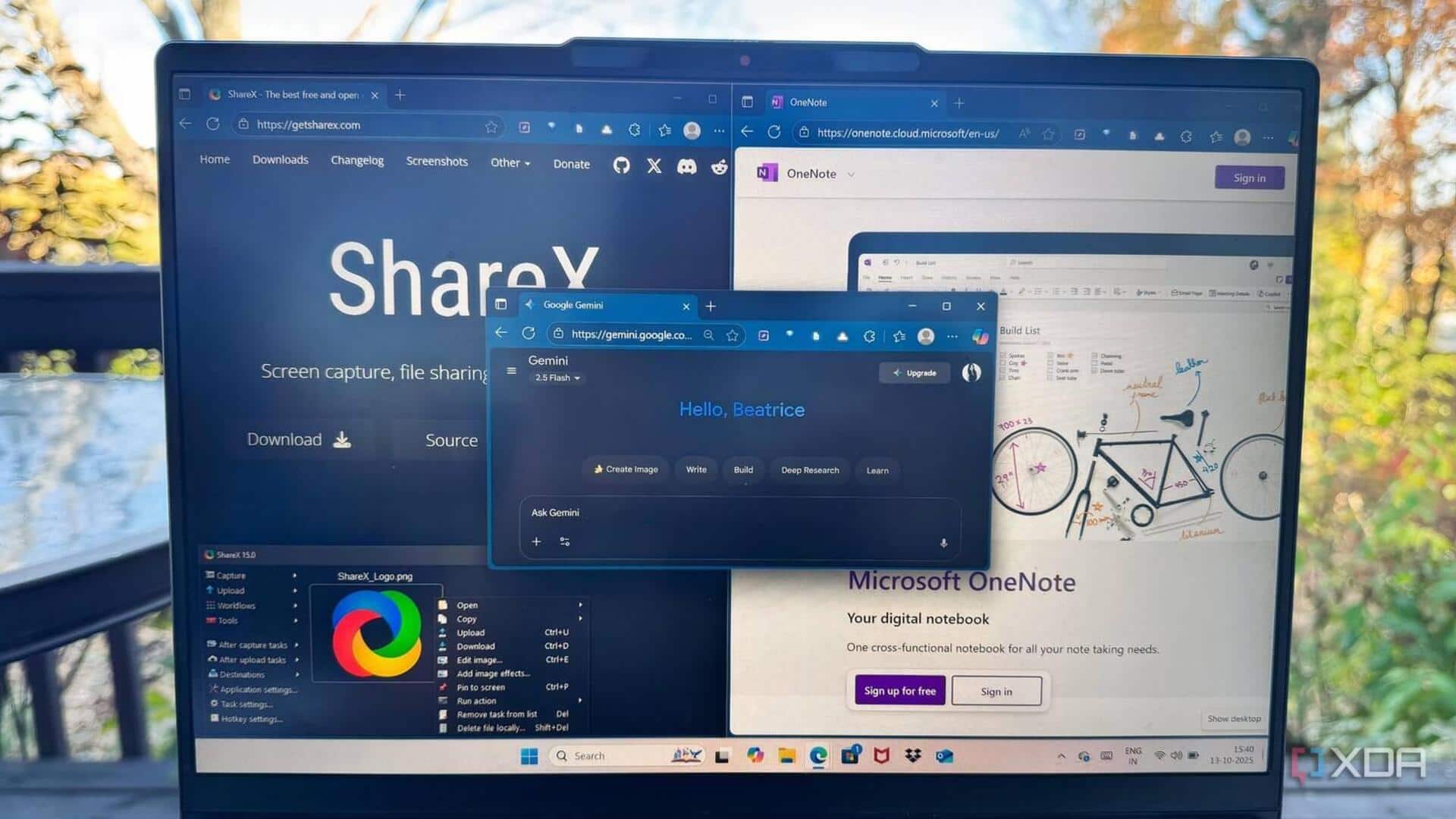
ShareX is an open-source screenshot tool that offers extensive customization options for organizing images. It supports various post-capture tasks like uploading, editing, and sorting files into folders based on tags or categories set by the user. This flexibility makes it ideal for those who need advanced control over their screenshot management process.
Tip 5
Try Greenshot for simple sorting
Greenshot is a lightweight screenshot tool with basic yet effective sorting capabilities. It allows users to define output paths where captured images will be saved automatically according to their preferences—be it by date or project name—ensuring easy access later without manual intervention.