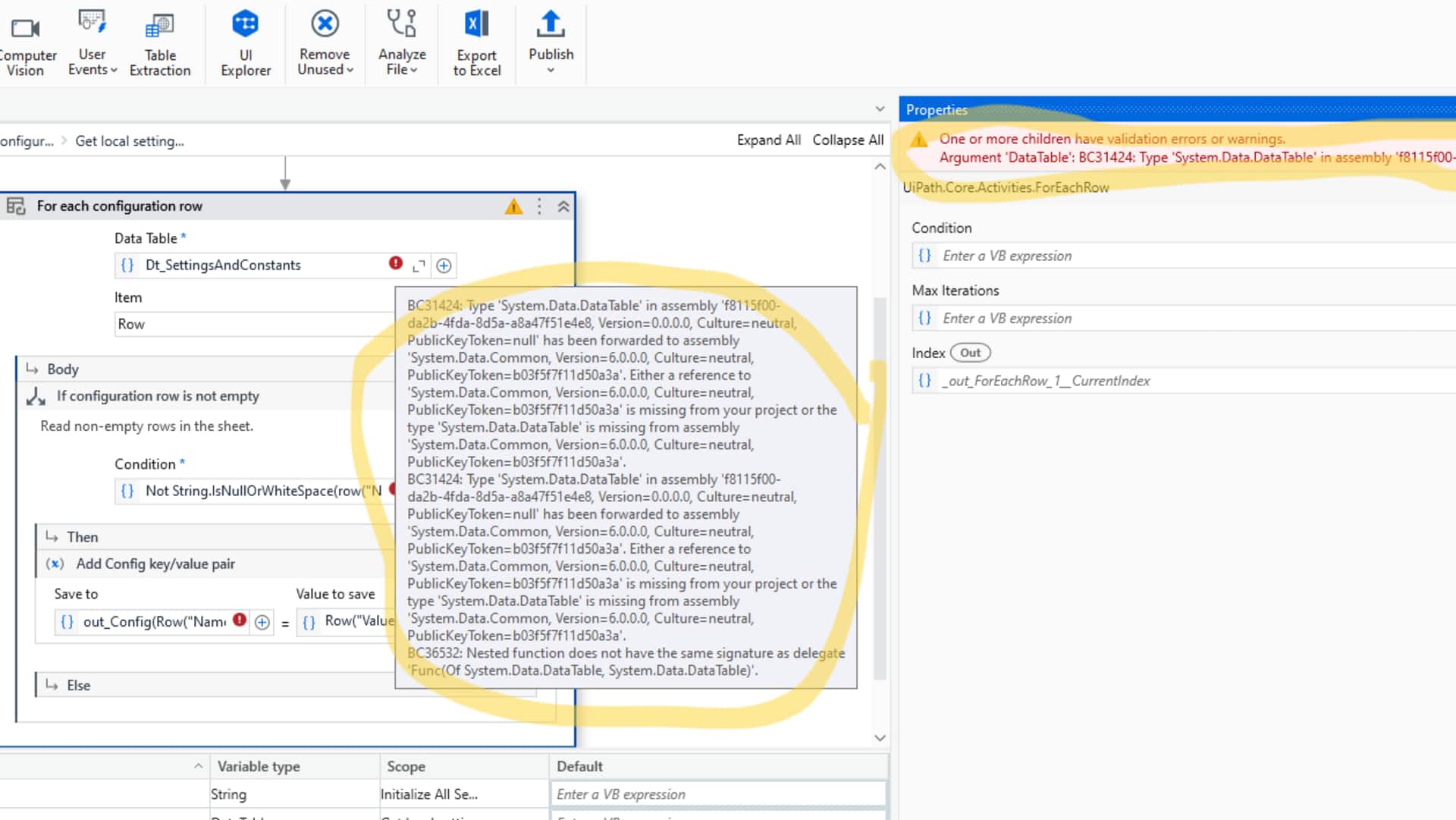
#TechBytes: How to copy text from error messages
What's the story
Copying text from error messages on your computer can be a useful way to troubleshoot problems or seek help online. However, it can be tricky if you don't know how to do it properly. Here are some simple methods to easily copy text from error messages, making it easier to share the information with tech support or search for solutions online. These tips will help you handle error messages more efficiently.
Tip 1
Using keyboard shortcuts
Keyboard shortcuts are the quickest way to copy text from error messages. Simply click on the message window and press Ctrl+C (or Command+C on Mac) to copy the highlighted text. If the message isn't highlighted, click and drag your mouse over the text while holding down the left button, then press Ctrl+C. This method works for most operating systems and applications.
Tip 2
Taking screenshots
If copying text directly isn't possible, taking a screenshot is another handy option. On Windows, press PrtScn to capture the entire screen or Alt+PrtScn for just the active window. On Mac, press Command+Shift+4 and drag over the area you want to capture. The screenshot can then be saved as an image file, which you can share or reference later.
Tip 3
Using Snipping Tool or Snip & Sketch
For Windows users, Snipping Tool or Snip and Sketch provides an easy way to capture specific parts of your screen. Open either tool from your Start menu, select New Snip, and drag over the error message area you want to capture. This way, you can save only relevant parts of error messages without cluttering your screen with unnecessary information.
Tip 4
Copying from console windows
For console windows where traditional text selection might not work, right-clicking inside the console usually gives you an option like "Mark." After marking the desired text with your mouse cursor while holding down the left button, press Enter to copy it directly onto your clipboard. This method is particularly useful for developers working with command line interfaces.