
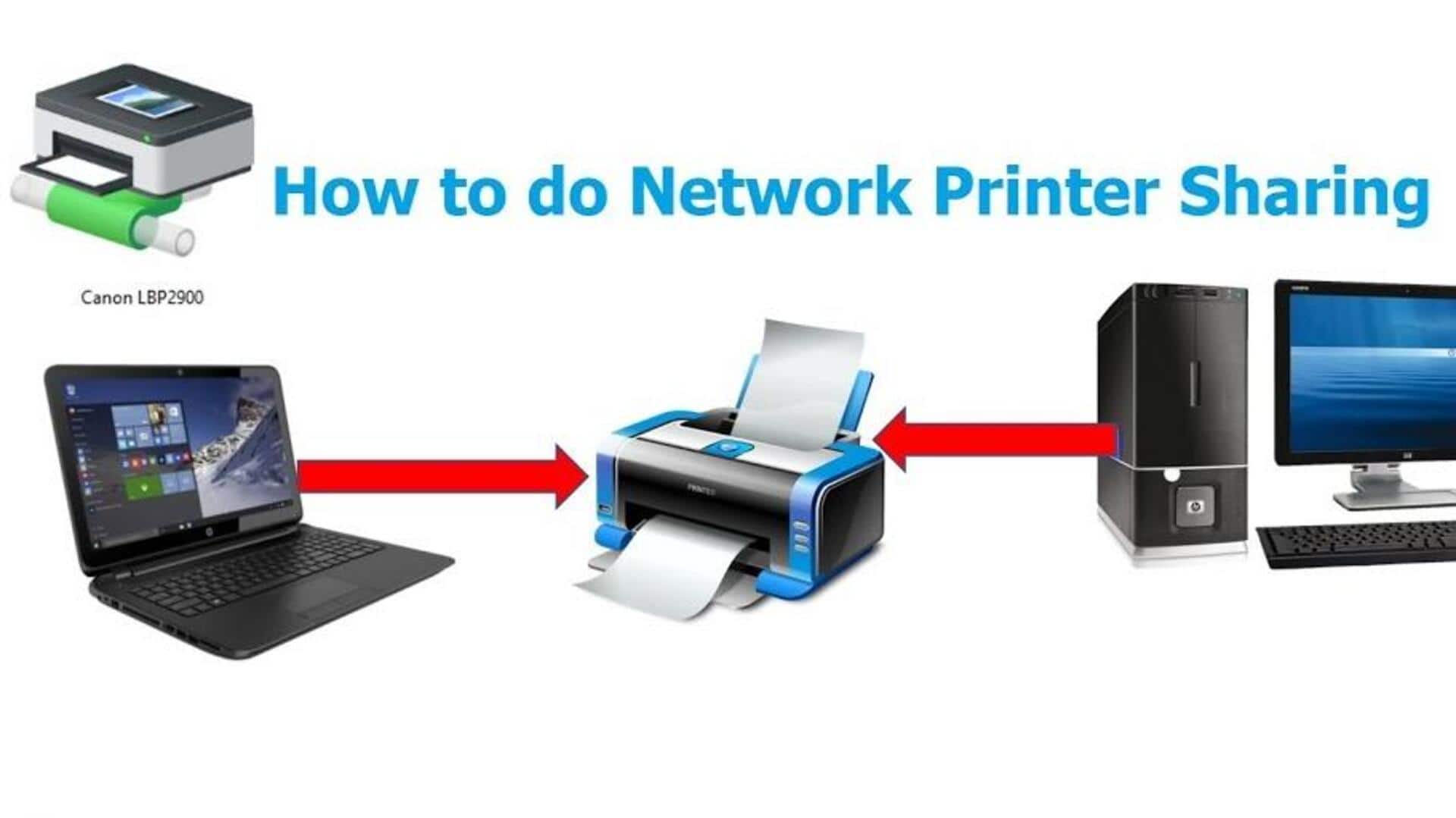
How to share printer over home network
What's the story
Sharing printers over a home network can be a cost-effective way to ensure that multiple devices can access printing capabilities without having to invest in multiple printers. By setting up printer sharing, you can streamline your printing processes and reduce the clutter of having several machines. This guide will walk you through the steps of sharing printers over a home network, ensuring efficient and easy access to printing resources for all connected devices.
Step 1
Connect printer to network
To begin with, connect your printer to the home network. Most modern printers come with built-in Wi-Fi capabilities, allowing them to connect directly to your router. Alternatively, you can connect the printer via an Ethernet cable if it's more convenient. Once connected, make sure the printer is powered on and recognized by the network. This step is crucial for enabling other devices on the same network to communicate with the printer.
Step 2
Install necessary drivers
After connecting your printer to the network, install any necessary drivers on each device that will be using the printer. These drivers are usually available on the manufacturer's website or included with the printer's installation CD. Installing these drivers ensures that your devices can communicate effectively with the printer, allowing for smooth operation and optimal performance.
Step 3
Configure printer settings
Once drivers are installed, configure your printer settings on each device. Go to Control Panel or System Preferences, depending on your operating system, and locate the Printers section. Here, you can add your networked printer by selecting it from the list of available devices. Make sure it's set as default if you want all print jobs to go through this machine automatically.
Step 4
Share printer across devices
To share your printer across multiple devices on your home network, enable sharing options in your device's settings. This way, other users connected to the same network can find and use your printer without needing direct connections or additional setup steps. Just make sure that each user has installed necessary drivers and knows how to add shared printers on their respective systems.
Tip 1
Troubleshoot common issues
If you face problems while trying to share printers over a home network, troubleshoot common issues like connectivity problems or driver errors. Check if all devices are connected to the same Wi-Fi network and that there are no firewall settings blocking communication between them and the shared printer. Restarting both router and devices often resolves minor glitches quickly without further intervention needed from users themselves.