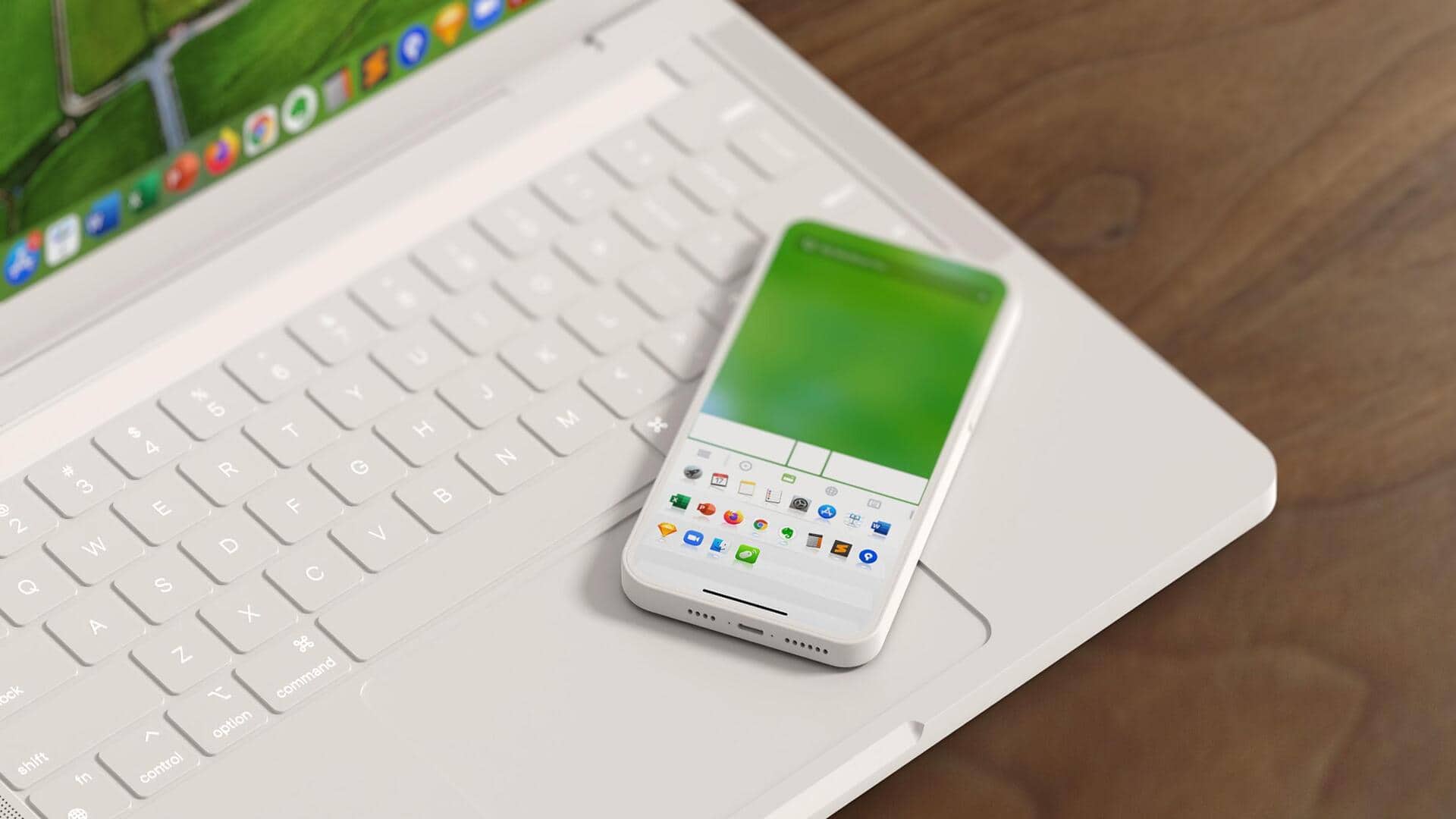
#TechHacks: Transform your smartphone into a wireless mouse
What's the story
Transforming your smartphone into a wireless mouse can make your computing experience much more convenient. By using apps and simple settings, you can control your computer from a distance, making presentations or just navigating without the hassle of cables. Here's how you can turn your smartphone into a wireless mouse with easy steps and useful tips.
App selection
Choose the right app
Choosing the right app is key to turning your smartphone into a wireless mouse.
There are several apps available for both Android and iOS platforms that offer this functionality.
Look for apps with good reviews and high ratings to ensure reliability and performance.
Some popular options include Remote Mouse, Unified Remote, and Mouse Kit. These apps usually offer features like touchpad control, keyboard input, and more.
Connectivity options
Connect via Bluetooth or Wi-Fi
Once you've selected an app, the next step is to connect your smartphone to your computer.
Most apps offer Bluetooth or Wi-Fi connectivity options. Bluetooth is usually more straightforward but has a limited range, while Wi-Fi allows for greater distance but requires both devices to be on the same network.
Follow the app's instructions to establish a connection between your devices.
Sensitivity tuning
Adjust sensitivity settings
After connecting your smartphone as a wireless mouse, adjusting sensitivity settings can improve accuracy and responsiveness.
Most apps provide options to tweak pointer speed and sensitivity levels according to personal preference.
Experimenting with these settings will help you find an optimal balance between precision and ease of use.
Extra functionalities
Utilize additional features
Many wireless mouse apps come with additional features that can further enhance functionality beyond basic pointing controls.
These may include remote keyboard access, media playback controls, or even system shortcuts for quick access to common tasks like volume adjustment or screen capture.
Exploring these features can make your experience more efficient during everyday computing tasks.
Power management tips
Ensure battery efficiency
Using your smartphone as a wireless mouse can quickly drain its battery if not managed properly.
To conserve power while using this setup, consider lowering screen brightness or enabling battery saver modes on your device when possible.
Also, closing unnecessary background apps will free up resources, ensuring better performance during use without compromising too much on battery life.