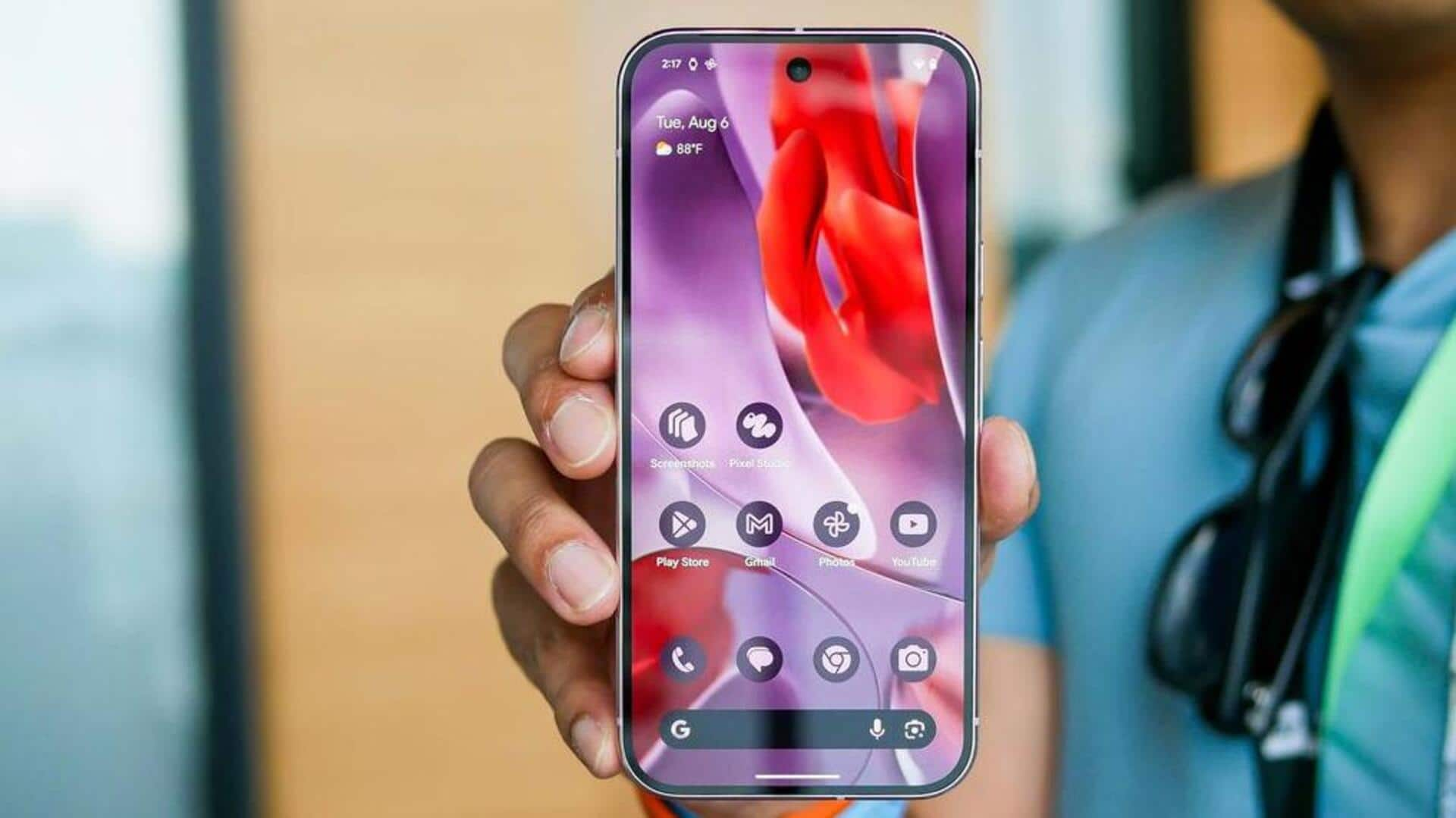
Best ways to customize your Google Pixel 9's home screen
What's the story
Google's latest smartphone series, the Pixel 9, offers a range of customization options for users. These features allow individuals to personalize their device's appearance and functionality according to their preferences. The first step in customizing a Pixel 9 is changing the wallpaper. This can be done by tapping and holding an empty area on the home screen, then selecting 'Wallpaper & style' from the pop-up menu that appears.
Wallpaper customization
Try from a variety of wallpaper options
The Pixel 9 provides users with a variety of wallpaper options.
After selecting 'Wallpaper & style,' users can choose 'More wallpapers' and pick an image from their photo library or Google's pre-assembled collections.
They also have the option to create a unique wallpaper using emojis or Gemini.
Once a wallpaper is chosen, it appears as a preview on both the home screen and lock screen for user approval before setting it permanently.
Themed icons
Material You theming for consistent UI
The Pixel 9 also features Material You theming, a feature introduced with Android 12.
This allows the color of app icons and other user interface (UI) elements to match the wallpaper, creating a cohesive visual experience.
To activate this feature, users need to select 'Wallpaper & style' from the home screen menu and enable 'Themed icons.'
They can then choose from various color palettes that complement their selected wallpaper.
App modification
Modify home screen apps
The Pixel 9 also allows users to modify the apps on their home screen for quick access.
To remove unwanted apps, users can tap and hold the app icon until a pop-up menu appears, then drag it toward the top of the screen.
The device provides options to either remove or uninstall the app.
Adding new apps involves a similar process, where users select an app from their drawer and place it on their home screen.
Widget addition
Add widgets for quick tasks
The Pixel 9 also allows users to add widgets to their home screen. These tools display information and enable quick tasks without opening an app.
To add a widget, users tap and hold an empty space on their home screen, select 'Widgets' from the pop-up menu, and choose from the available options.
After placing a widget, its size can be adjusted using the outline that appears around it.