
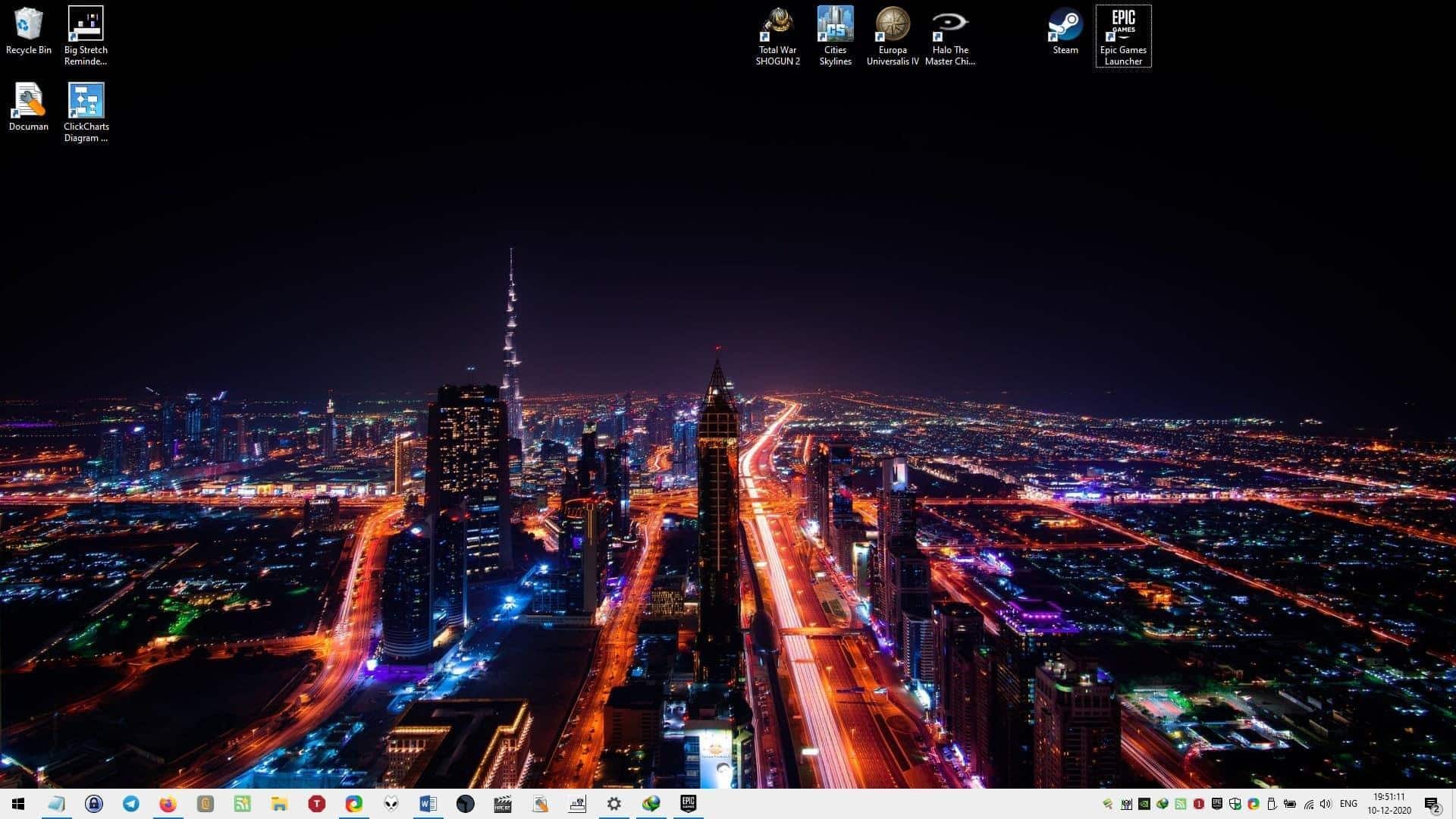
#TechBytes: Want to change your desktop wallpaper automatically? Here's how
What's the story
Changing your desktop wallpaper automatically can make your workspace more dynamic and personalized. It can also boost your mood and productivity by giving you a fresh visual every time you log in. With the right settings, you can have your wallpaper change at regular intervals or based on certain criteria. Here's how you can set up automatic wallpaper changes on your desktop, with practical tips and steps.
Tip 1
Using built-in Windows settings
Windows comes with built-in settings to change wallpapers automatically. Just right-click on the desktop, select 'Personalize', and navigate to 'Background'. From here, you can select 'Slideshow' from the dropdown menu. Pick a folder with images and set the time interval for how often you want the wallpapers to change.
Tip 2
Utilizing third-party software
If you want more control over your wallpaper changes, third-party software can help. Programs like Wallpaper Engine or DisplayFusion offer advanced features like animated wallpapers or multi-monitor support. These tools usually come with customization options that let you schedule when and how often your wallpapers change, giving you more flexibility than built-in options.
Tip 3
Organizing your image folder
Organizing images in a dedicated folder makes it easier to manage your wallpaper collection. Keep high-resolution images in this folder and delete ones that don't fit your screen's resolution. A well-organized folder makes it easier to quickly pick or update images, ensuring a seamless experience when setting up automatic changes.
Tip 4
Setting up schedules for wallpaper changes
Some software lets you set specific schedules for when wallpapers should change, based on time of day or activity level on your computer. For instance, you may want certain images to appear during work hours and different ones during leisure time. This level of customization can make your desktop environment more aligned with your daily routine.