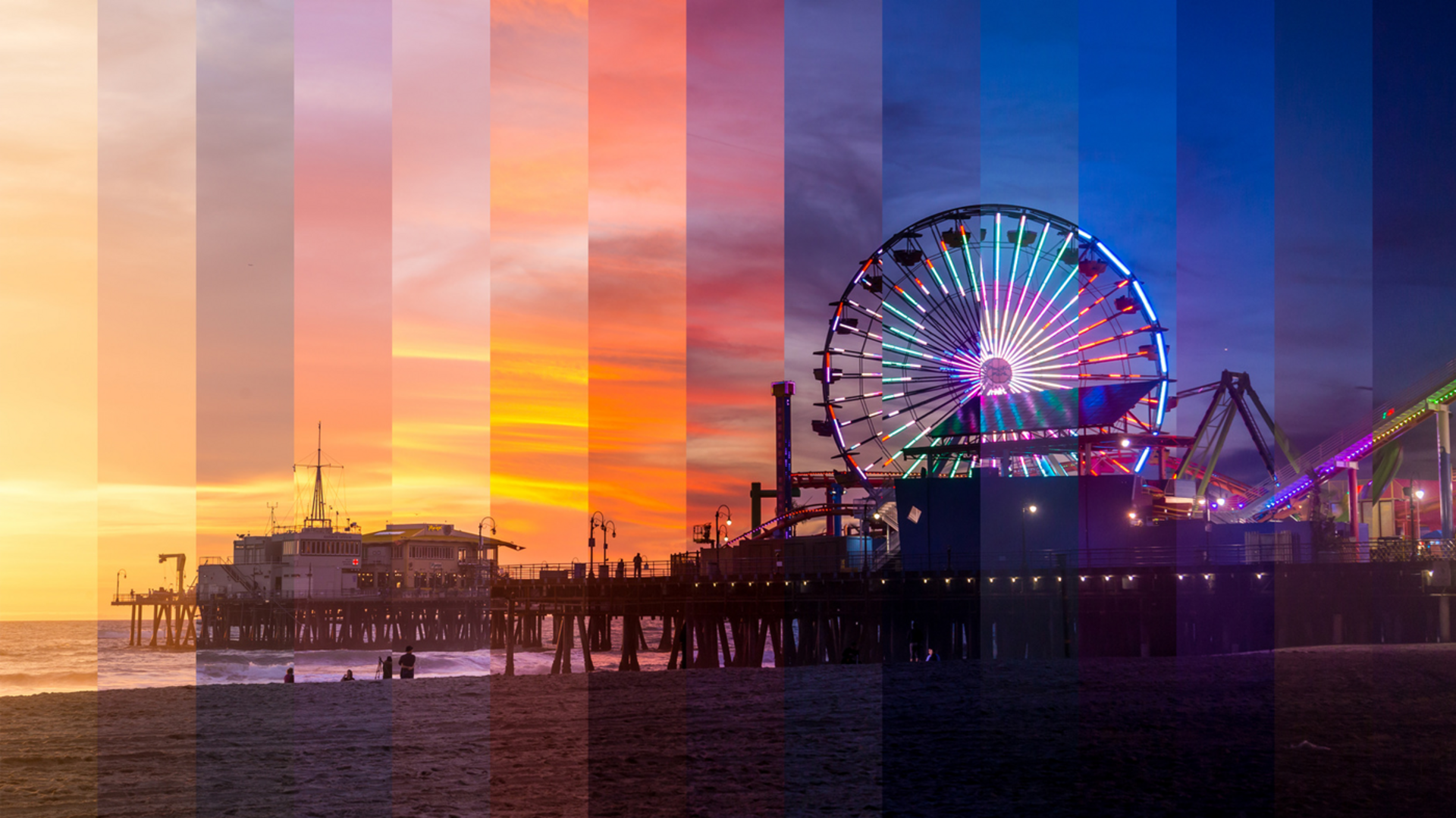
#TechBytes: How to make time-lapse videos from photos
What's the story
Creating time-lapse videos from photos can be a fun way to capture the essence of long processes in a short span of time. Using Windows 11, you can easily create these videos using built-in tools and some free software. Here's how you can turn your photo collection into a dynamic video, step by step, without requiring any advanced technical skills or expensive software.
Photos app
Using Windows Photos app
The Windows Photos app has a built-in video editor that can be used to create time-lapse videos from photos.
Just import your images into the app, and arrange them in the order you want.
The app lets you adjust the duration of each photo, so you can control the speed of your time-lapse.
This is an easy way to create a basic time-lapse without any additional software.
Duration settings
Adjusting photo duration
To create a time-lapse video, you'll need to adjust the duration settings for each photo in your sequence.
A shorter duration will make the video play faster, while a longer one will slow it down.
Experiment with different durations until you find the right balance that suits your project's needs.
Enhancements
Adding transitions and effects
Adding transitions and effects can make your time-lapse video more engaging.
The Windows Photos app provides various options like fades and zooms between photos.
These subtle enhancements can add a professional touch without distracting from the main content of your video.
Final steps
Exporting your video project
Once you're satisfied with your time-lapse video project, it's time to export it.
Choose an appropriate resolution and format based on where you plan to share or view it.
Higher resolutions may take longer to process but offer better quality for larger screens.