#TechBytes: How to turn off pop-up ads on browsers
What's the story
Pop-up ads can be annoying and distracting, but disabling them is pretty simple. By following a few steps, you can browse the internet without these interruptions. Here is a guide on how to disable pop-up ads on different browsers, so you can have a smoother online experience. Whether you are using Chrome, Firefox, Safari, or Edge, these tips will help you get rid of unwanted pop-ups.
Chrome settings
Disabling pop-ups in Chrome
In Google Chrome, disabling pop-ups is easy.
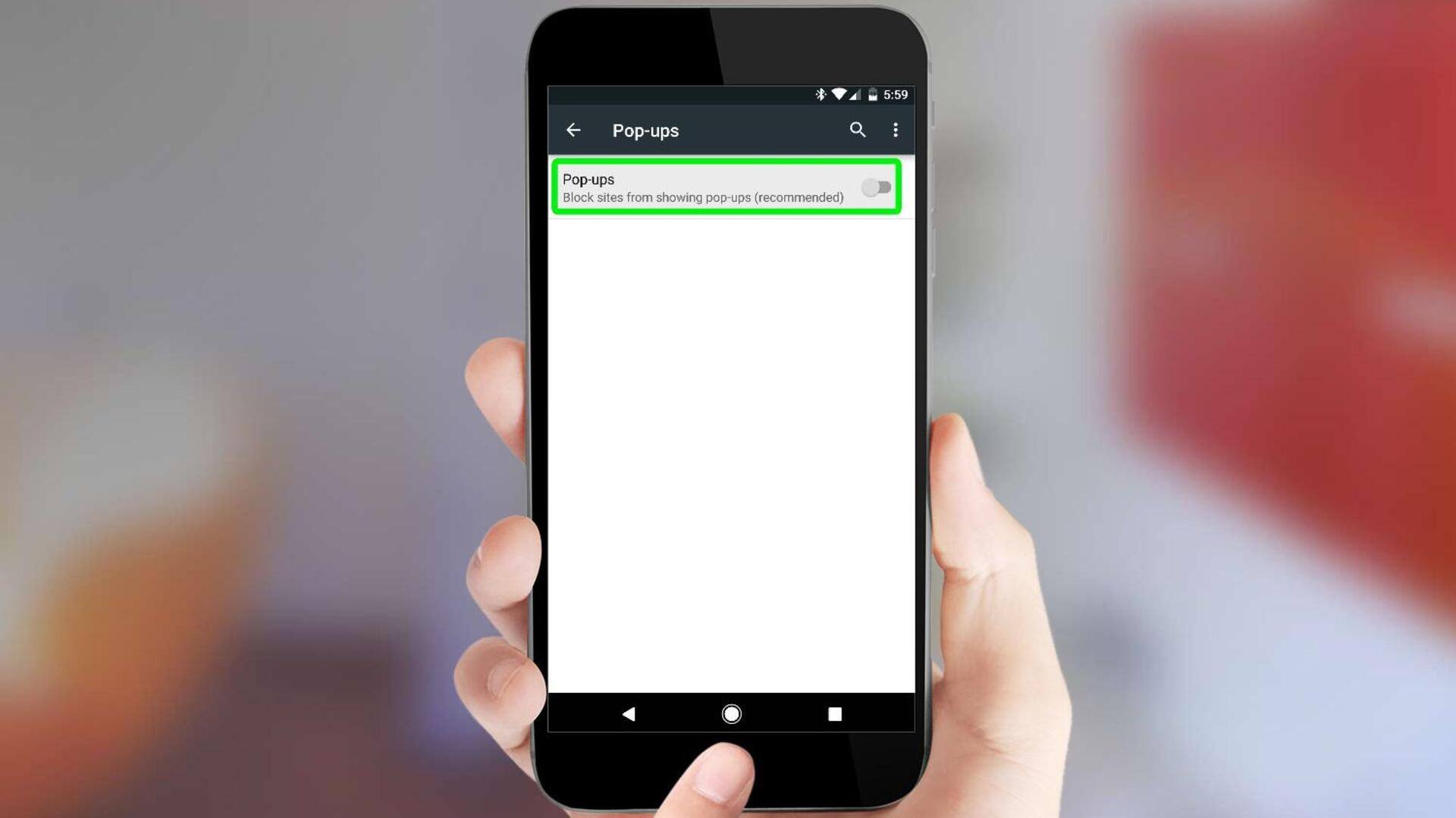
Go to Settings, and click on Privacy and Security. From there, select Site Settings, and look for Pop-ups and Redirects.
You can either block or allow sites to show pop-ups as per your choice.
This way, you can control which websites are allowed to show pop-ups and which aren't.
Firefox preferences
Managing pop-ups in Firefox
Mozilla Firefox lets you manage pop-ups through its preferences menu.
Click on the menu button, and select Options.
Under Privacy and Security, scroll down to the Permissions section, and check the box next to Block pop-up windows.
This will ensure that most pop-ups are blocked while letting through exceptions for sites where you want them.
Safari preferences
Adjusting settings in Safari
For Safari users on macOS or iOS devices, disabling pop-ups is done through preferences.
In Safari preferences, click on Websites, and then Pop-up Windows from the sidebar.
Here, you can choose to block or allow pop-ups for individual websites by selecting your preferred option from the dropdown menu.
Edge settings
Controlling pop-ups in Edge
Microsoft Edge has also made it easy to block unwanted pop-ups.
Open Edge settings by clicking on the three-dot menu at the top right corner of the browser window.
Go to Cookies and site permissions, and click on Pop-ups and redirects.
Here, you can toggle the switch to block or allow pop-ups site-wide or for specific sites only.